
2 minutes per task
What you get
Every client finding with a name and a date on it, so nothing raised with a client is forgotten.
Where client tasks come from
- A client's Renewals row menu → Create Task
- Create Task on an overlapping-app group or a Cost Savings opportunity
- The Portfolio Intelligence Agent, when its actions include AppVentory Tasks
- Tasks → Create Task
Steps
- Go to Tasks and click Create Task.
- Enter a Task title and choose the Associated client.
- Choose Assigned to — yourself or a colleague.
- Set the due date, status and priority.
- Switch on Set to Repeat this task for routines such as a quarterly client review.
- Click Create Task.
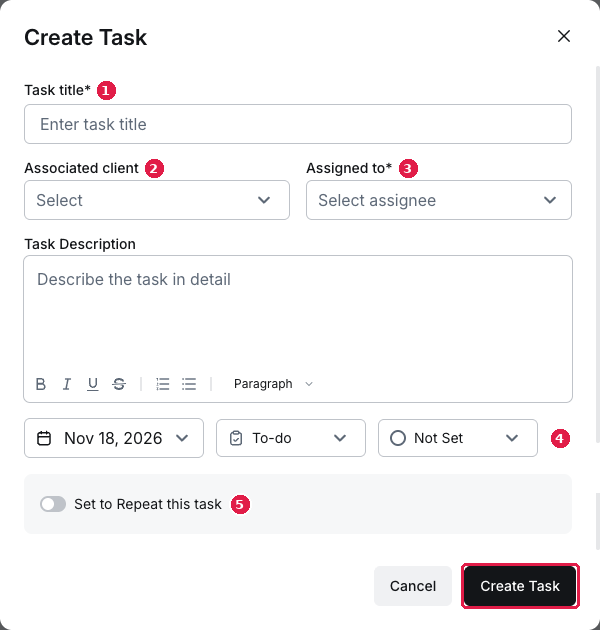
The Create Task dialog with the associated client and the repeat toggle
Reading the list
Tasks Management shows each task's assignee, type, priority, due date and associated client. Filter by Due Date, Task Type, Priority or Assignee. Overdue dates show in red.
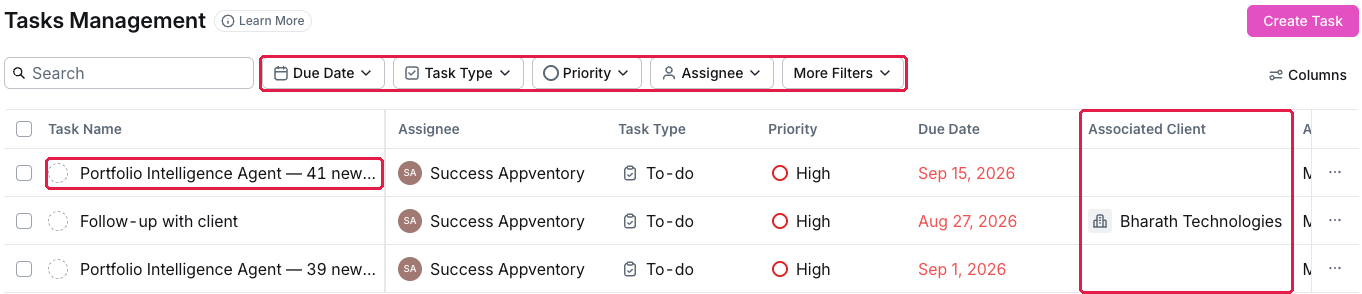
Tasks Management: tasks with assignee, priority, due date and associated client
On the client's record
A client's tasks also sit on their record's Tasks tab. Inside the client's workspace there is no Tasks menu.
What you've unlocked
A follow-up system for your clients. Next: Your monthly 15 minutes across the portfolio.
Managing your own organisation's software? See Track the work in Tasks.