Overview
ChannelBoost enables partners and internal teams to collaborate on lead referrals and deal management within a single, structured workflow. Referrals can be submitted by partners or portal users, reviewed and qualified by Technical Advisors, and then converted into trackable deals that move through defined sales stages until closure.
The platform provides visibility across the entire lifecycle—from initial referral submission to deal conversion and closure—ensuring proper attribution, partner engagement, and incentive tracking. Once a referral is converted into a deal, it can be managed through list or Kanban views, updated as it progresses, and ultimately closed with automated notifications to all relevant stakeholders.
Successful referrals may also generate referral credits, which can be redeemed through multiple methods depending on eligibility and program configuration.
Prerequisites and Configuration
Before referrals and deals can be managed in ChannelBoost, partners must be onboarded into the Partner Relationship (PR) program and complete the required partner configurations.
To configure partner settings, navigate to: Settings > General
Configure the following:
- Partner Status: Defines the proficiency level of the partner (e.g., Beginner, Intermediate, Expert).
- Partner Type: Specifies the partner category (e.g., Reseller, Implementation Partner, Referral Partner).
- Partner Tiers: Determines preference or strategic value, and affects partner directory ranking.
- Partner Groups (Optional): Enables additional segmentation within partner types.
- Provider Products: Lists supported software or service offerings associated with partners.
Partners must be fully configured and active before referrals can be submitted or assigned.
Adding a Referral to ChannelBoost
Navigate to the "Referrals" tab and click "Submit New Referral" to add referrals individually or in bulk via CSV.
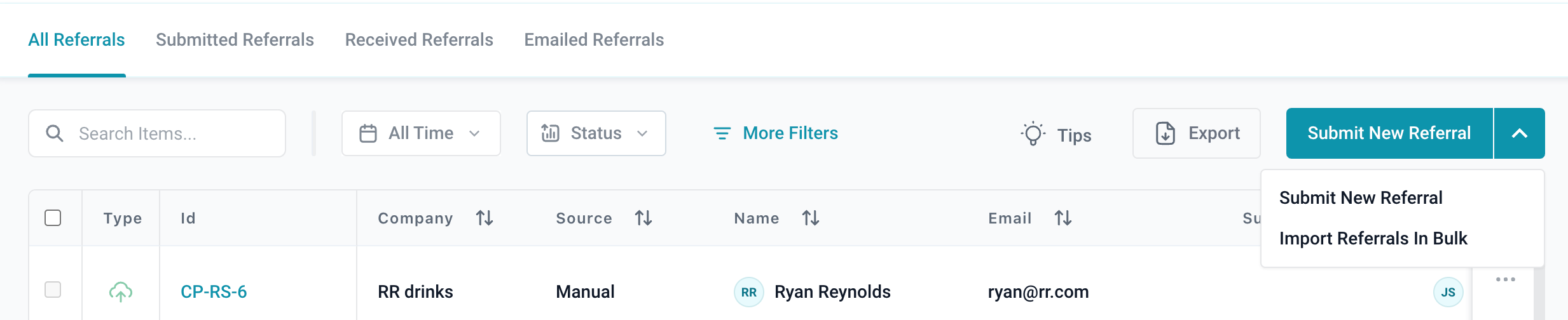
When adding individually, complete all necessary fields:
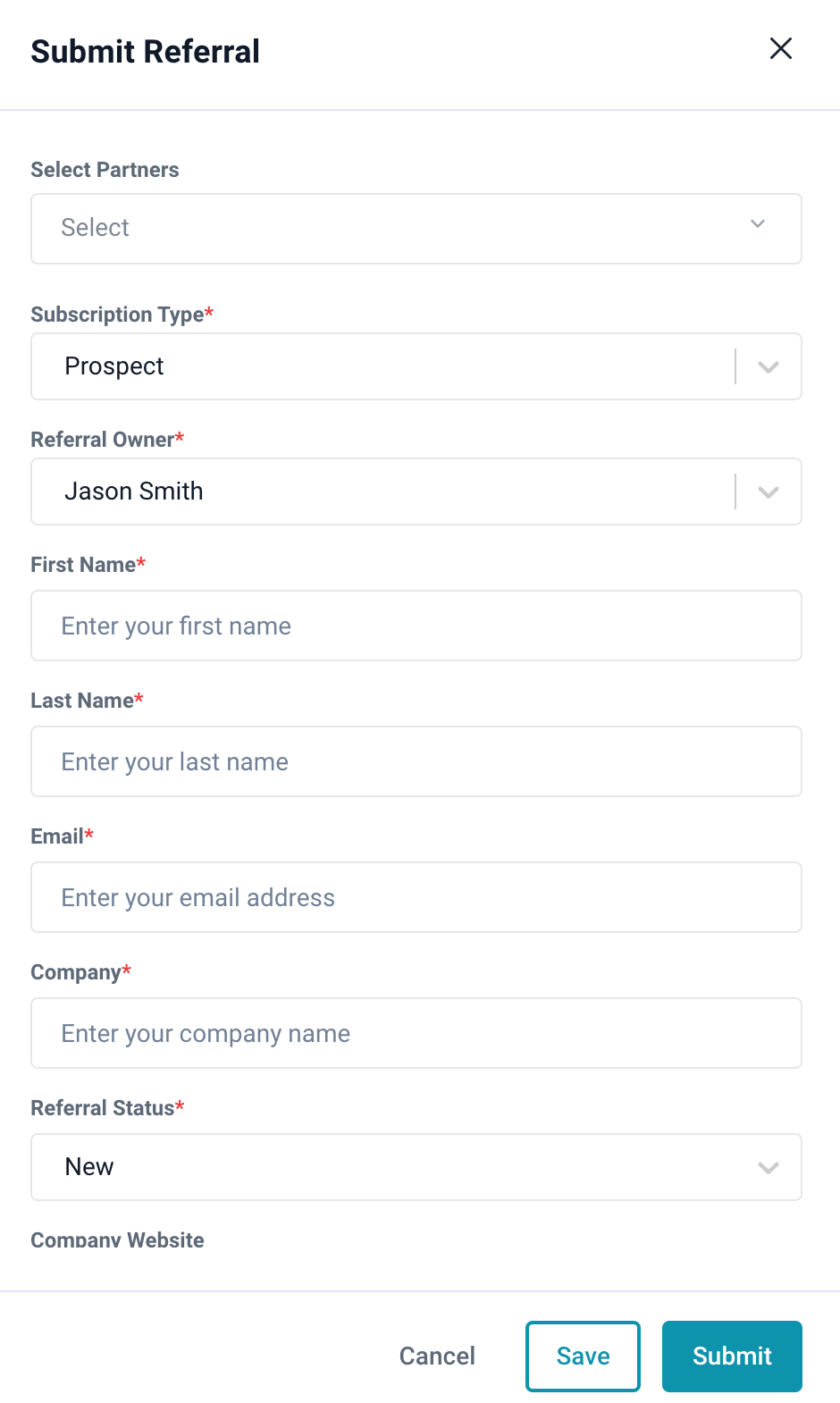
Mandatory Fields:
- Select Partners: Displays a dropdown menu listing all Technical Advisors connected to the portal. Select one or multiple consultant partners linked to the referral.
- "First Name", "Last Name", "Email", and "Company", these details must be provided.
- Owner Selection: Assigns a user from the portal as the owner of the referral.
After submitting, referrals become visible on both the Technical Advisor portal and ChannelBoost. When a referral is won, the "Convert" button can be used to turn it into a deal. If converted directly from ChannelBoost, no additional steps are required, and the deal automatically appears in the list of deals.
Deals
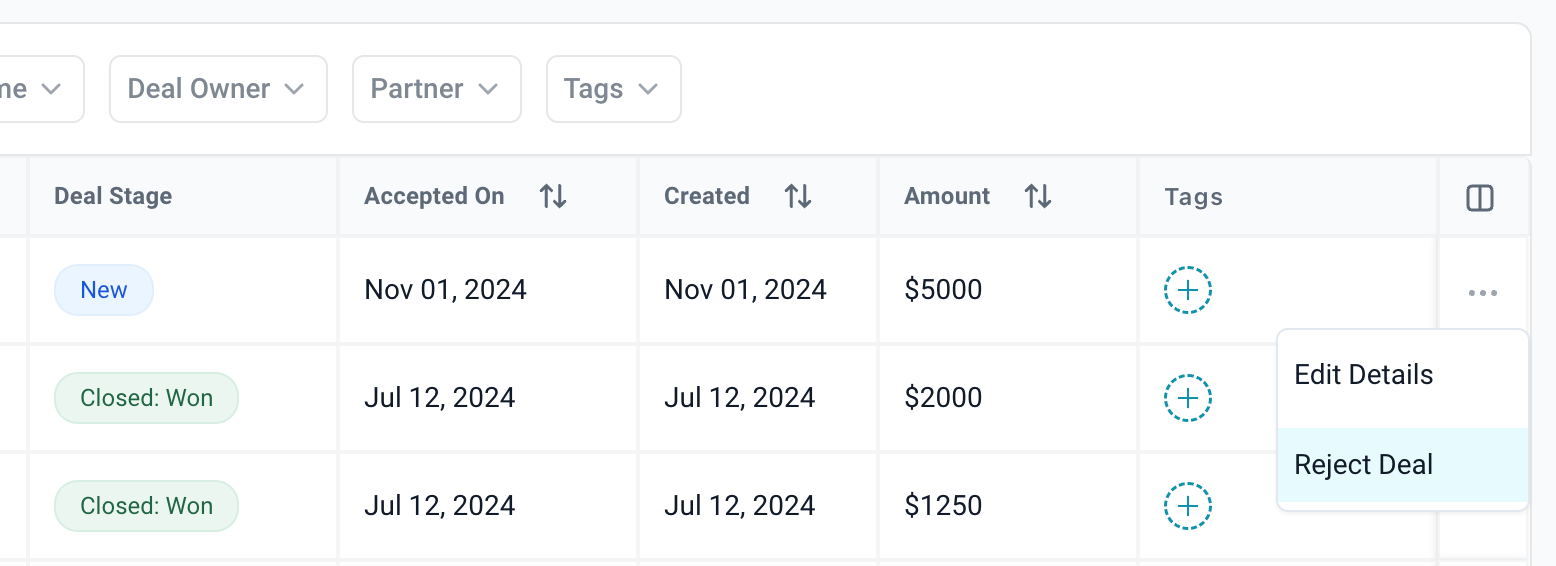
The Deal page displays all converted deals in either a list view or a Kanban view.
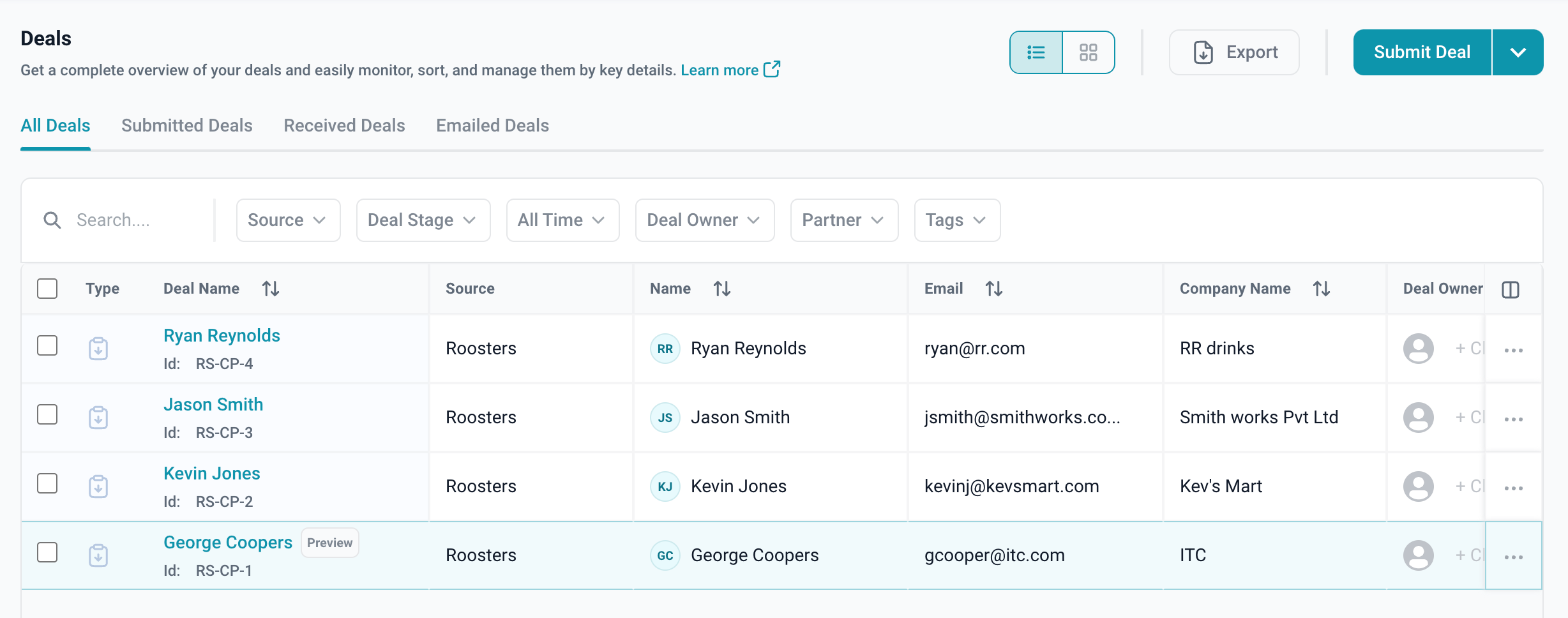
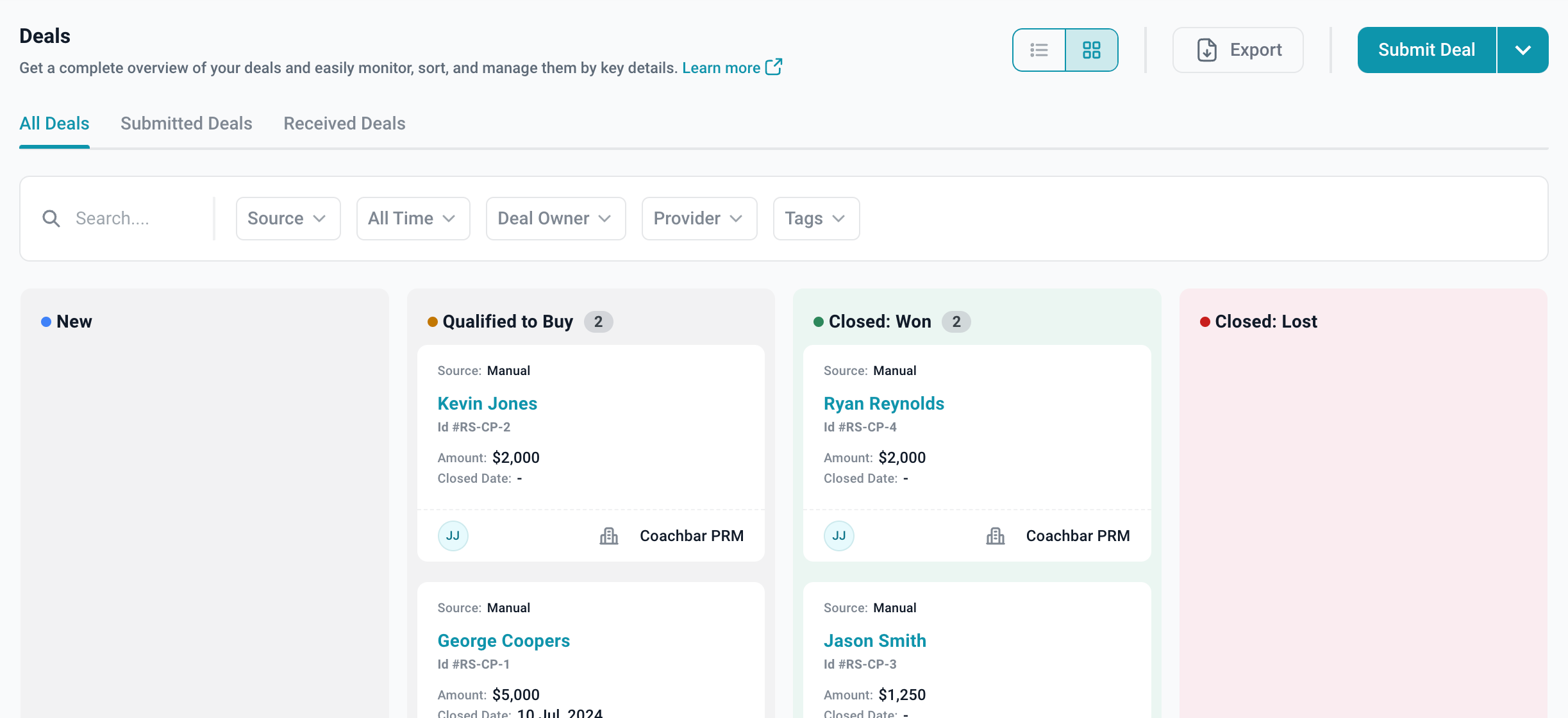
A deal can be submitted directly using the "Submit Deal" button. Once submitted, its status can be updated to reflect progress. Clicking on any deal provides a detailed view of the prospect.
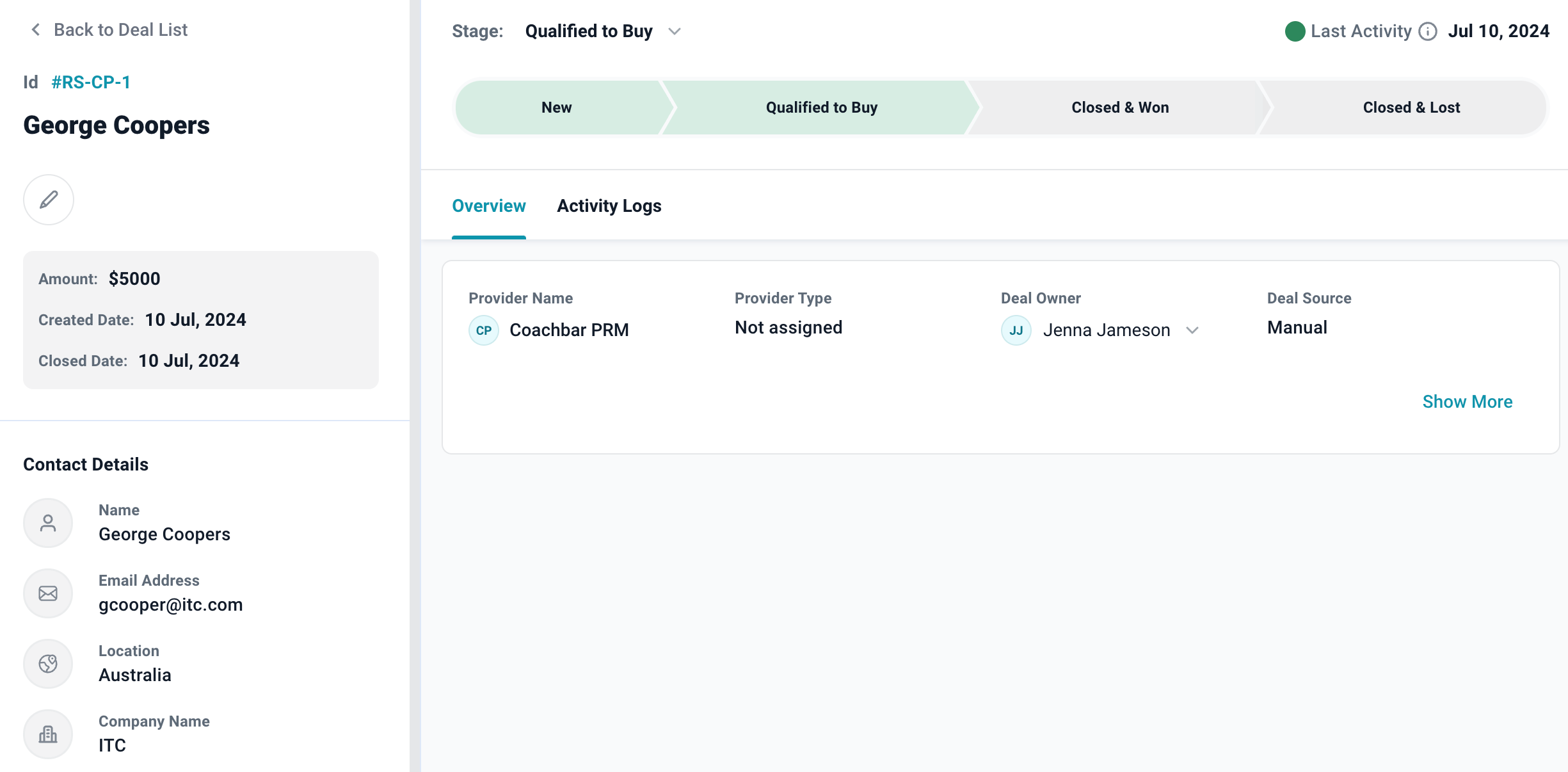
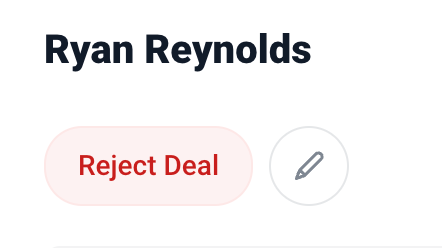
When a deal is marked as "Closed Won", all relevant parties receive notifications, and the deal is marked as complete. Any lead rejection must occur before marking the deal as "Closed Won".
Referral Credits – How to Redeem
Referral credits are awarded when a referred user successfully completes a qualifying action, such as purchasing a subscription or signing up for a service. These credits serve as a reward and offer multiple redemption options for added flexibility:
- Automatic Application: Credits automatically apply to the next invoice.
- Manual Redemption: Credits can be manually applied before completing a transaction.
- Cash Payouts (if eligible): Withdrawal through payment platforms like Stripe or PayPal is available once the minimum threshold is met.
- Future Discounts: Unused credits remain valid for future purchases, plan upgrades, or add-ons.
If you need further assistance, please contact our dedicated customer support team at support@appventory.com, who will assist you with anything else you need. We take pride in providing exceptional service experiences, and our commitment to client satisfaction is at the heart of everything we do.