---
title: Spot the app whose price quietly jumped
description: Use AppVentory spend-change signals to identify software costs that have increased and trace the change before your next renewal or budget review.
---
[Skip to content](https://support.appventory.com/en-us/spot-the-app-whose-price-quietly-jumped#main-content)
[.png?width=187&height=40&name=AppVentory%20Logo%20(White).png)](https://support.appventory.com/?hsLang=en-us)
- [Product Update](https://support.appventory.com/en-us/release-notes)
- [Academy](https://academy.appventory.com/app)
- [Webinars](https://academy.appventory.com/app/webinars)
Open main navigation
Close main navigation
- [Product Update](https://support.appventory.com/en-us/release-notes)
- [Academy](https://academy.appventory.com/app)
- [Webinars](https://academy.appventory.com/app/webinars)
- [Contact us](https://24182720.hs-sites.com/submit-a-ticket)
[Contact us](https://24182720.hs-sites.com/submit-a-ticket?hsLang=en-us)
How can we help you?
- There are no suggestions because the search field is empty.
1. [AppVentory Knowledge Base](https://support.appventory.com/en-us?hsLang=en-us)
2. [Start here](https://support.appventory.com/en-us/start-here?hsLang=en-us)
3. [Wins you can get today](https://support.appventory.com/en-us/start-here?hsLang=en-us#wins-you-can-get-today)
# Spot the app whose price quietly jumped
## Use spend-change signals to find applications whose cost has moved enough to deserve a closer look.
###### 5 minutes · Needs enough spend history for a useful comparison
#### What you get
Applications whose spend has changed enough to deserve a second look. A rise can come from price, seat count, timing, a new mapping or another transaction change, so the signal is the start of the investigation rather than the answer.
#### Steps
1. Go to **Apps** and open **Problematic Apps**.
2. Look at the **Annual Spend Increase** column.
3. Open anything with a sharp rise and check its **Spend** tab to see when it changed.
4. Compare the change with the users, subscription details and underlying transactions you have available.
5. Separate changes you can explain from changes that need an owner or vendor conversation.
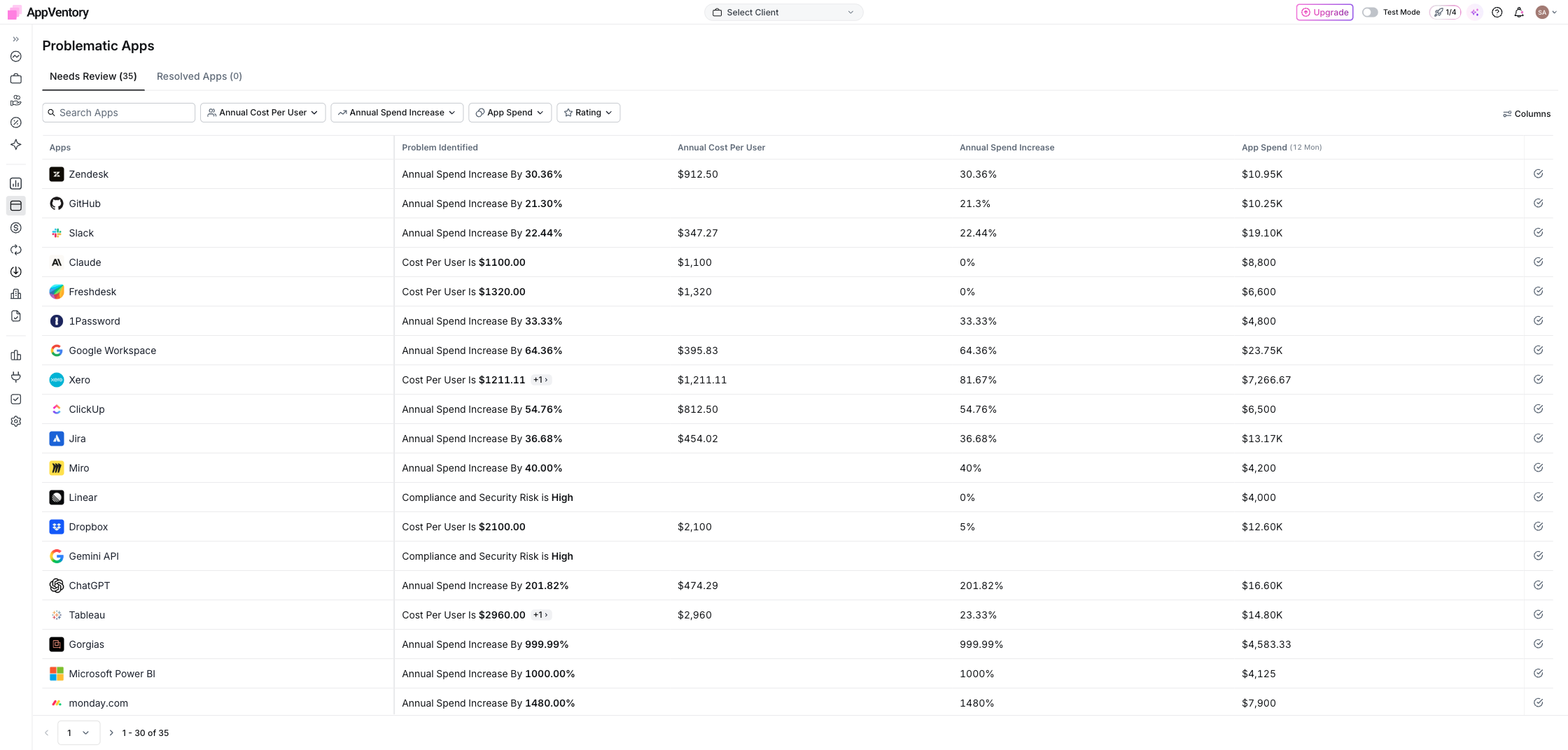
*Problematic Apps showing annual spend increase and cost per user*
#### What you've found
A shortlist of spend changes that need explanation. Before acting, confirm that the underlying transactions are mapped correctly — a newly mapped app or a different historical baseline can change what the comparison looks like.
#### Tune the signal where the setting is available
Use the **Problematic App Rules** settings to adjust the thresholds your account uses for flags such as spend increase, cost per user or ratings. Treat the result as a review queue, not an automatic recommendation to cut the app.
- [AppVentory](https://support.appventory.com/en-us/appventory?hsLang=en-us)
- [Start here](https://support.appventory.com/en-us/start-here?hsLang=en-us#main-content)
- [Start here](https://support.appventory.com/en-us/start-here?hsLang=en-us#start-here)
- [Running both](https://support.appventory.com/en-us/start-here?hsLang=en-us#running-both)
- [Wins you can get today](https://support.appventory.com/en-us/start-here?hsLang=en-us#wins-you-can-get-today)
- [Set up your data](https://support.appventory.com/en-us/set-up-your-data?hsLang=en-us#main-content)
- [Getting your data in](https://support.appventory.com/en-us/set-up-your-data?hsLang=en-us#getting-your-data-in)
- [Integrations](https://support.appventory.com/en-us/set-up-your-data?hsLang=en-us#integrations)
- [Your app inventory](https://support.appventory.com/en-us/set-up-your-data?hsLang=en-us#your-app-inventory)
- [See your spend](https://support.appventory.com/en-us/see-your-spend?hsLang=en-us#main-content)
- [Reporting what you found](https://support.appventory.com/en-us/see-your-spend?hsLang=en-us#reporting-what-you-found)
- [Find savings and risks](https://support.appventory.com/en-us/see-your-spend?hsLang=en-us#find-savings-and-risks)
- [Spend](https://support.appventory.com/en-us/see-your-spend?hsLang=en-us#spend)
- [Run your stack](https://support.appventory.com/en-us/run-your-stack?hsLang=en-us#main-content)
- [Surveys and team feedback](https://support.appventory.com/en-us/run-your-stack?hsLang=en-us#surveys-and-team-feedback)
- [Renewals](https://support.appventory.com/en-us/run-your-stack?hsLang=en-us#renewals)
- [Requests and procurement](https://support.appventory.com/en-us/run-your-stack?hsLang=en-us#requests-and-procurement)
- [For advisors](https://support.appventory.com/en-us/for-advisors?hsLang=en-us#main-content)
- [Running a portfolio](https://support.appventory.com/en-us/for-advisors?hsLang=en-us#running-a-portfolio)
- [AI Agents](https://support.appventory.com/en-us/for-advisors?hsLang=en-us#ai-agents)
- [Playbooks](https://support.appventory.com/en-us/playbooks?hsLang=en-us)
- [Admin and troubleshooting](https://support.appventory.com/en-us/admin-and-troubleshooting?hsLang=en-us)
- [Trust and security](https://support.appventory.com/en-us/trust-and-security?hsLang=en-us)
[](https://appventory.com?hsLang=en-us)
[mailto:email@email.com](mailto:email@email.com)
Copyright © 2026, AppVentory
Can’t find what you’re looking for?
Let us help you right now!
[Submit a Ticket](https://support.appventory.com/submit-a-ticket?hsLang=en-us)
[](https://www.linkedin.com/company/appventory/) [](https://www.youtube.com/@AppVentory-p5/videos)
Contact us
[hello@appventory.com](mailto:hello@appventory.com) [+1 (206) 338-6633](tel:+12063386633)
[For Accountants & MSPs ](https://www.appventory.com/for-accountants)
Solutions
[Grow Your Practice](https://www.appventory.com/solutions/for-practice/grow-revenue) [Win & retain clients](https://www.appventory.com/solutions/for-practice/win-and-retain-clients) [Expand tech advisory](https://www.appventory.com/solutions/for-practice/tech-stack-advisory) [Protect client software stack](https://www.appventory.com/solutions/for-practice/protect-client-stack) [Prove ROI to clients](https://www.appventory.com/solutions/for-practice/prove-roi-clients)
By role
[Partners & Firm Owners](https://www.appventory.com/by-role/accountants/partner-and-firm-owner) [Client Managers](https://www.appventory.com/by-role/accountants/client-managers) [Digital Transformation Team](https://www.appventory.com/by-role/accountants/digital-transformation-team) [Operations Head](https://www.appventory.com/by-role/accountants/operations-head)
[For Business ](https://www.appventory.com/for-businesses)
Solutions
[Reduce SaaS overspend](https://www.appventory.com/solutions/business/cut-saas-overspend) [Optimize renewals](https://www.appventory.com/solutions/business/optimize-every-renewal) [Remove risky apps](https://www.appventory.com/solutions/business/eliminate-unapproved-apps) [Simplify procurement](https://www.appventory.com/solutions/business/streamline-procurement) [Scale without extra headcount](https://www.appventory.com/solutions/business/scale-operation)
By role
[CFO / Finance Leader](https://www.appventory.com/by-role/businesses/cfo-and-finance-leaders) [IT Manager / Head of Ops](https://www.appventory.com/by-role/businesses/it-and-finance-managers) [SMB Owner](https://www.appventory.com/by-role/businesses/smb-business-owners) [Enterprise Procurement](https://www.appventory.com/by-role/businesses/enterprise-procurement)
Company
[About Us](https://www.appventory.com/about-us) [Blog](https://www.appventory.com/blog) [Changelog](https://support.appventory.com/en-us/release-notes?hsLang=en-us#appventory) [Customer Stories](https://www.appventory.com/customer-stories) [Pricing](https://www.appventory.com/pricing) [ROI calculator](https://www.appventory.com/roi-calculator) [Events](https://www.appventory.com/events)
Comparison pages
[AppVentory vs Torii](https://www.appventory.com/compare/torii-vs-appventory) [AppVentory vs Zylo](https://www.appventory.com/compare/zylo-vs-appventory) [AppVentory vs Vendr](https://www.appventory.com/compare/vendr-vs-appventory)
Privacy
[Privacy Policy](https://www.appventory.com/privacy-policy) [Saas Agreement](https://www.appventory.com/saas-agreement) [Terms of Service](https://www.appventory.com/terms-of-service) [Cookie Policy](https://www.appventory.com/cookie-policy) [Coachbar Trust Center](https://trust.coachbar.io/)
Our Products
[AppVentory Channels](https://channels.appventory.com/)
©2026 AppVentory. All Rights Reserved.