.png?width=187&height=40&name=AppVentory%20Logo%20(White).png)
General Settings Overview
The Settings section is segmented into five functional area:
- Account Settings
- General Settings
- App Settings
- Practice Settings
- Client Setting
These categories ensure streamlined workflows, administrative autonomy, security, automation, and improved collaboration. With the recent update, admins gain more empowerment through self-service tools that simplify managing users and scaling operations.
Account Settings
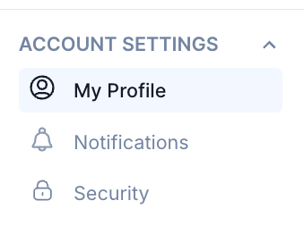
My Profile
Located under Account Settings, this section is used to personalize the account and manage basic user information.
Fields available on this page:
- Profile Image
- Name
- Email Address
- Save Changes button
- Sign Out
- Delete Your Account
This setup maintains accurate user identification across the platform and ensures users can manage access securely.
Notifications
Notifications ensure users remain informed of platform activities both in real time (in-app) and offline (via email).
This page offers two sections:
- Push Notifications: Multiple toggles are available to configure in-app alerts during active sessions.
- Email Notifications: Contains a single toggle labeled Import Updates, enabling users to receive email summaries when offline.
These settings help maintain engagement and reduce the risk of missing important activity.
Security
Titles as Account Security, this section enhances account protection by allowing configuration of access control mechanisms.
Key functionalities:
- Set Password: Update the account password anytime
- Two Factor Authentication: Toggle to secure login using an additional verification step.
- Login Activities: Review historical access to detect unauthorized attempts.
This section establishes strong security protocols and supports monitoring of login behavior
Note: The "Two Factor Authentication" and "Login Activities" fields are temporarily inaccessible.
General Settings
The General Settings section is where platform-wide configurations related to business identity, financials, user access, and compliance are defined.
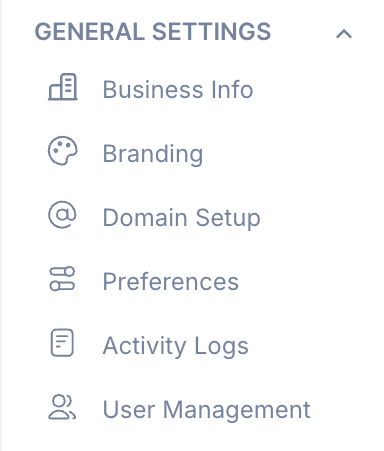
Business Info
Allows updating key company details to ensure consistent business representation across AppVentory. Keeping this section up to date ensures accurate internal reporting and communication alignment.
Branding
This is a Template Setup Page used to customize platform visuals and ensure brand consistency. Branding enables businesses to reflect their identity throughout customer interactions, documents, and shared reports.
Domain Setup
Used to configure and verify a custom business domain for outbound email communications.
Steps include:
- Add the domain to the system
- Complete domain ownership verification
Purpose: Ensures improved deliverability and professional credibility of system-generated emails.
Preferences
This section governs key operational defaults for transactions, reporting, and automation. It ensures platform configurations reflect the business's geographical and financial context.
Field include:
- Default Currency: All transactions will be displayed in this currency.
- Time Zone: Ensures accurate timestamping of activity logs and transactions.
- Fiscal Year Start Month: Dropdown field used to define the first month of the fiscal year.
- Once selected, the month cannot be changed again.
- After selection, click Save Fiscal Year.
- Payment Frequency Autoset: Toggle to allow automatic determination of payment frequency based on transaction patterns
Activity Logs
A centralized space to track and review all user actions across the platform. Supports internal audits, performance tracking, and compliance visibility.
User Management
Used to manage team member access and permissions. Enhanced recently, this section now supports Admin Empowerment Tools, allowing administrators to autonomously handle user management without relying on platform support.
Steps to use:
- Go to: Settings > User Management
- Click: Invite Member
- Fill all mandatory fields:
Name & Email
User Type:
- Business User: Manages internal apps
- Practice Manager: Manages app advisory for clients
If “Practice Manger” is selected, User Role appears:
- Administrator: Can view all clients
- Member: Can only view assigned clients
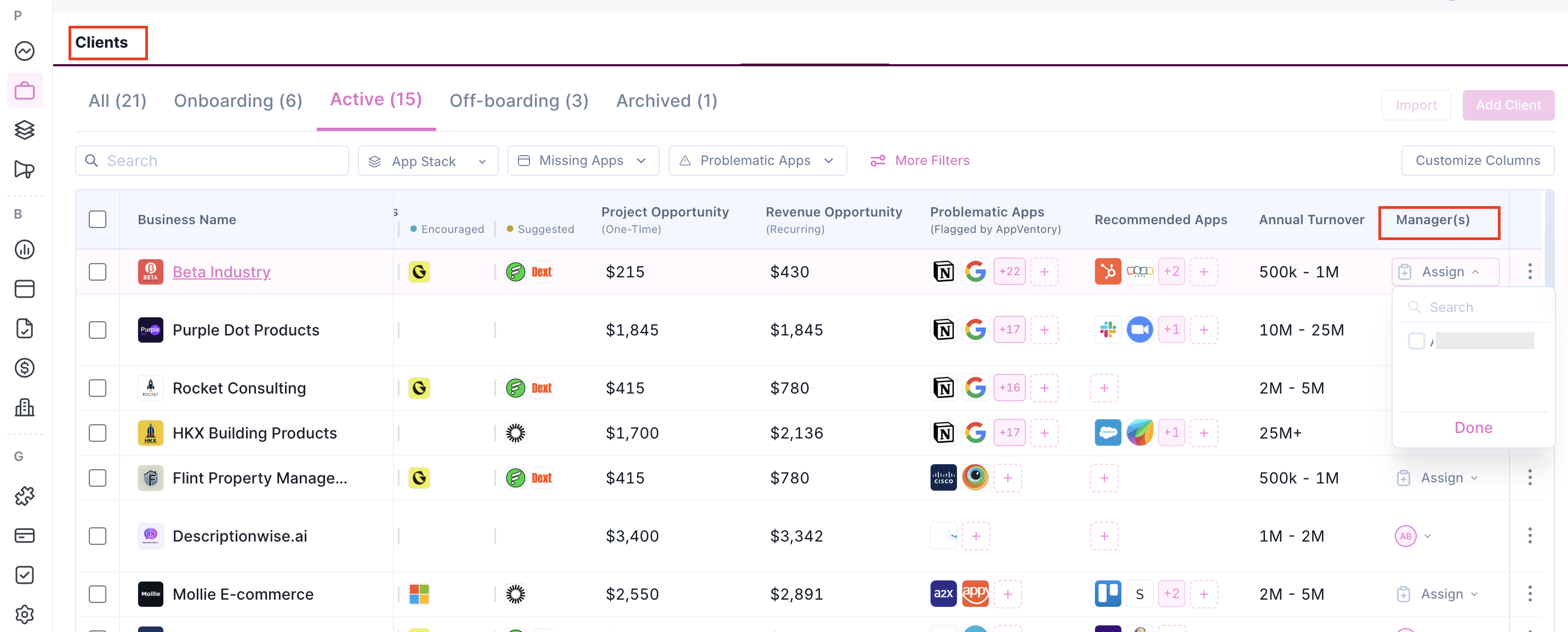
Member Access Control (Practice Manager Only)
- Navigate to Practice > My Clients
- Under each client, up to 5 members can be assigned in the Managers field
- Even if more members exist, only 5 can be linked per client
Summary Table
| Fields |
Options |
Accessibility |
| User Type | Business User | Own business apps |
| Practice Manager | Client advisory | |
| User Role (Only for Practice Manager) | Administrator | All clients |
| Member | Assigned clients only |
App Settings
The App Settings section introduces automation and classification controls that enhance expense tracking and app inventory clarity.
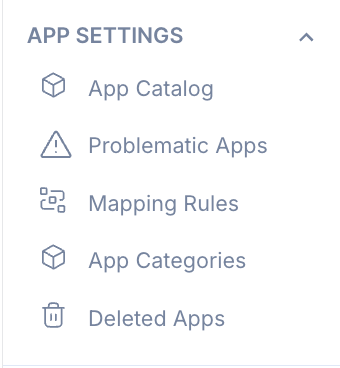
Apps Catalog
The Apps Catalog in AppVentory functions as a centralized marketplace for employees to explore approved company software, request access to existing tools, and submit procurment requests for new applications. This system prevents duplicate purchases and streamlines software asset management.
1. Enabling the Apps Catalog
When navigating to the App Catalog under App Settings, the interface displays an initial landing screen if the feature has not been activated. Click the Enable Apps Catalog button to open the configuration dashboard and activate the organization's catalog.
2. Managing App Catalog Assets
Once enabled, three distinct components can be configured and previewed:
- App Catalog: The visual layout displaying the company's approved software library, featuring tabs for Recommended Apps and All Apps.
- Access Request Form: The modal pop-up displayed to end-users when seeking authorization for an existing application.
- Procurement Request Form: The interface utilized by employees to request the acquisition of entirely new software tools.
For more information, click here
3. Request Settings and Forms
Two toggle switches control user permissions for software acquisition:
- Send Access Request: Enabling this toggle allows users to request permission for software currently listed in the catalog. The preview form requires the selection of a Department and a written Justification / Business Need.
- Send Procurement Request: Activating this toggle permits users to submit requests for new software purchases. The preview form mandates detailed criteria, including Department, software purpose description, Required number of seats, Budget (configurable per month or other intervals), and a Justification / Business Need.
4. Apps Catalog Access Control
Access to the published catalog is governed by an invitation-based system found under the Apps Catalog Access section:
- Inviting Members: Specific employees can be selected via a dropdown menu. Multiple selections can be made simultaneously before clicking the Send Invitation button.
- Tracking Invitations: Clicking View Invited Members opens a side drawer displaying a table of all invited personnel. This log tracks the Member Name, the invitation Status (such as Pending or Accepted), and available management actions.
Problematic Apps
Identify and flag apps with potential issues based on custom criteria.
- Non-Cloud App Detection: Toggle to flag apps not hosted on cloud infrastructure.
- User Rating Threshold: Dropdown to flag apps rated below a set threshold (2 to 5 stars).
- Cost Per User Limit: Input field to flag apps exceeding a defined annual cost per user.
- Annual Price Increase: Input field to flag apps with annual price increase above a specified percentage.
- Compliance & Security Risk: It is a customizable criteria toggle used by administrators to automatically flag applications that may present a data protection or regulatory risk to the organization.
Custom Mapping Rules
This page is titled Custom Mapping Rules and enables automated handling of expense categorization based on text patterns found in descriptions or vendor names.
To create a rules:
- Click Create New Rule
- A tab appears titles New Custom Rule
- Complete the following fields:
- Value Type: Options are Description or Vendor Name
- Condition: Choose from Contains with, Start with, End with, or Is Exactly.
- Value: Define the trigger term
- Action: Choose Assign to or Ignore
- If Ignore is selected, the Select App field disappears
- Select App: Choose the app to assign if applicable
- Priority: Numerical value to set execution order
Click "Create" to finalize. This feature ensures accurate and automated expense classification across integrated applications.
App Categories
Used to create, view, and manage categories for organizing apps by function or department. These categories appear as options when adding a new app and are fully customizable under Settings > App Categories.
Deleted Apps
This section logs apps that have been removed from active use. Offers filters by category or time period. Users may restore deleted apps, selecting whether the app should return as:
- In-use
- Discovered
This provides a fail-safe mechanism to recover important apps mistakenly removed and supports better app lifecycle tracking.
Practice Settings
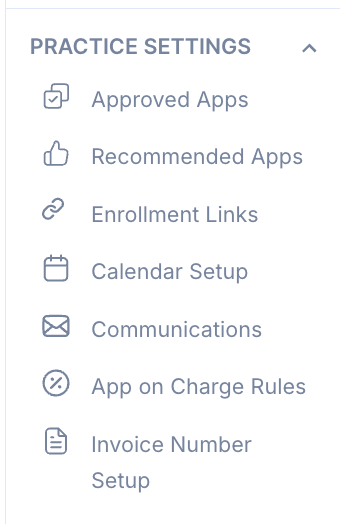
Approved Apps
View and manage all apps approved for client use.
- Each app includes a "View Details" option to see assigned client count.
- Clicking the three-dot icon opens the Additional features including the App Details tab through "Edit"
As for the "Delete" option check the below demo
- Bulk Action: This is to either Select multiple apps to "Create App Stack" which opens the App
Stack Details tab or "Remove" button which prompt confirmation to delete selected apps.
- Add New Apps: Select from a list of available apps to add to Approved list
Recommended Apps
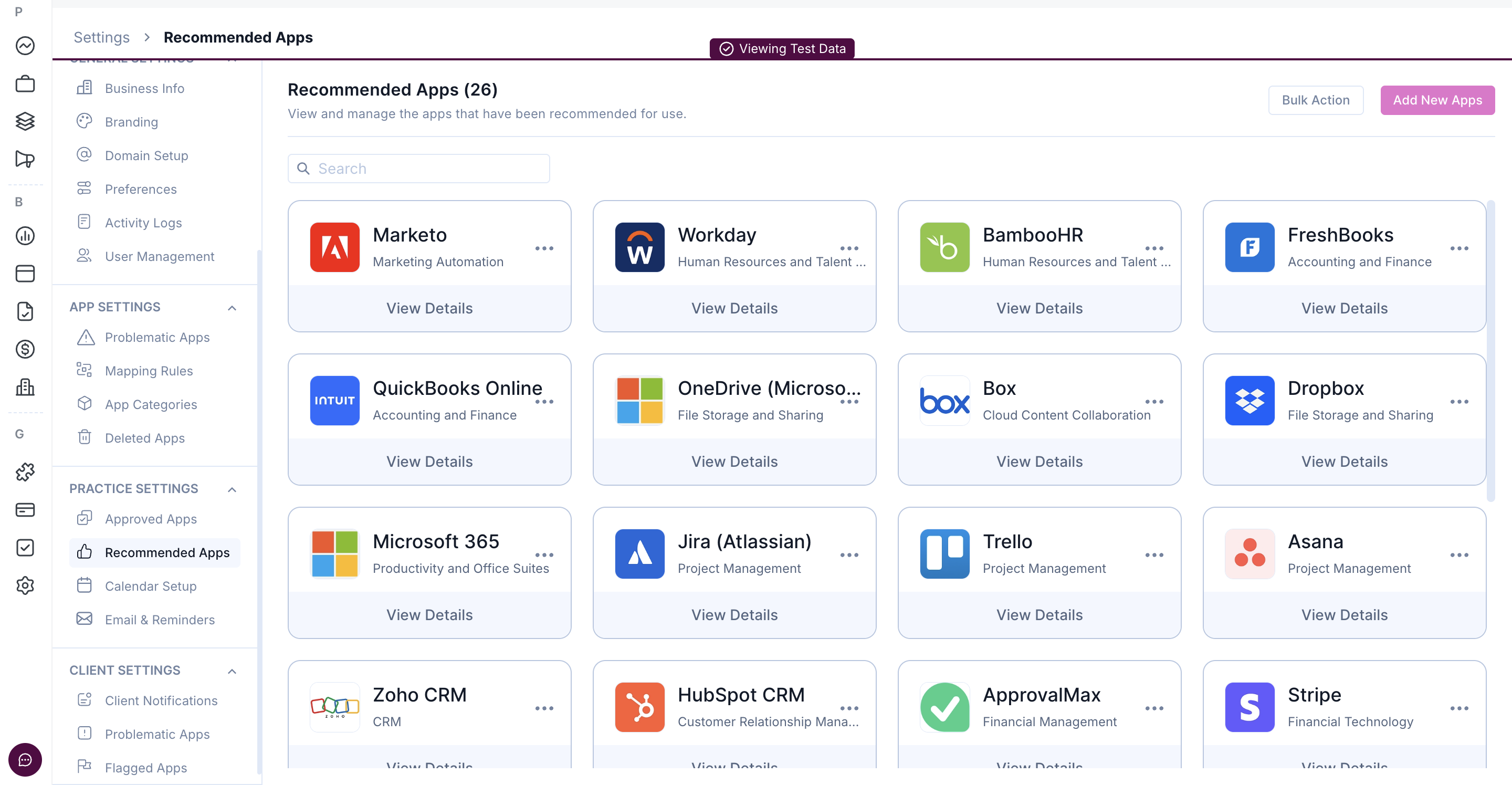
Apps proposed for use , pending approval.
- Use Add New Apps to select and add multiple apps.
- Bulk Action allows users to select one or more apps and then choose one of the options. "Move to Approved Apps" this moves the selected apps to the Approved Apps list and automatically removes them from the Recommended Apps list. Then "Remove" this deleted the selected apps from the Recommended Apps list.
Enrollment Links
The Enrollment Links page in AppVentory allows users to manage how new submissions from specific external links are handled within the system. The settings on the page are divided into two main categories accessible via horizontal tabs: Service Prospects and Advisory Prospects.
Key Sections and Functionality
Both the Service Prospects and Advisory Prospects sections feature identical management modules for two distinct links: Request Link and Prospect Link. Each module provides the following details and actions:
-
Performance Metrics: Real-time data displays for tracking link engagement, which include:
-
Total Clicks: The number of times the link has been opened.
-
Total Submissions: The total number of completed forms received through the link.
-
Avg. Time Taken: The average duration required for a user to complete the submission.
-
-
Link Status Toggle: A toggle switch allows for the manual activation or deactivation of the link. When a link is set to Inactive, a notification confirms that new signups will not be accepted.
-
Unique Link Sharing: A unique URL is provided for sharing purposes, embedded with UTM parameters for direct or social media tracking. A dedicated copy button next to the link field simplifies distribution.
-
Actionable Options: Buttons at the bottom of each module allow users to:
-
View Enrollment Form: Preview the live submission form layout.
-
Share via LinkedIn / Share via Email: Directly distribute the active links through connected communication channels.
-
View All Submissions: A shortcut link located at the top right of each section provides direct access to the complete history of submissions received from that specific link.
-
Calendar Setup
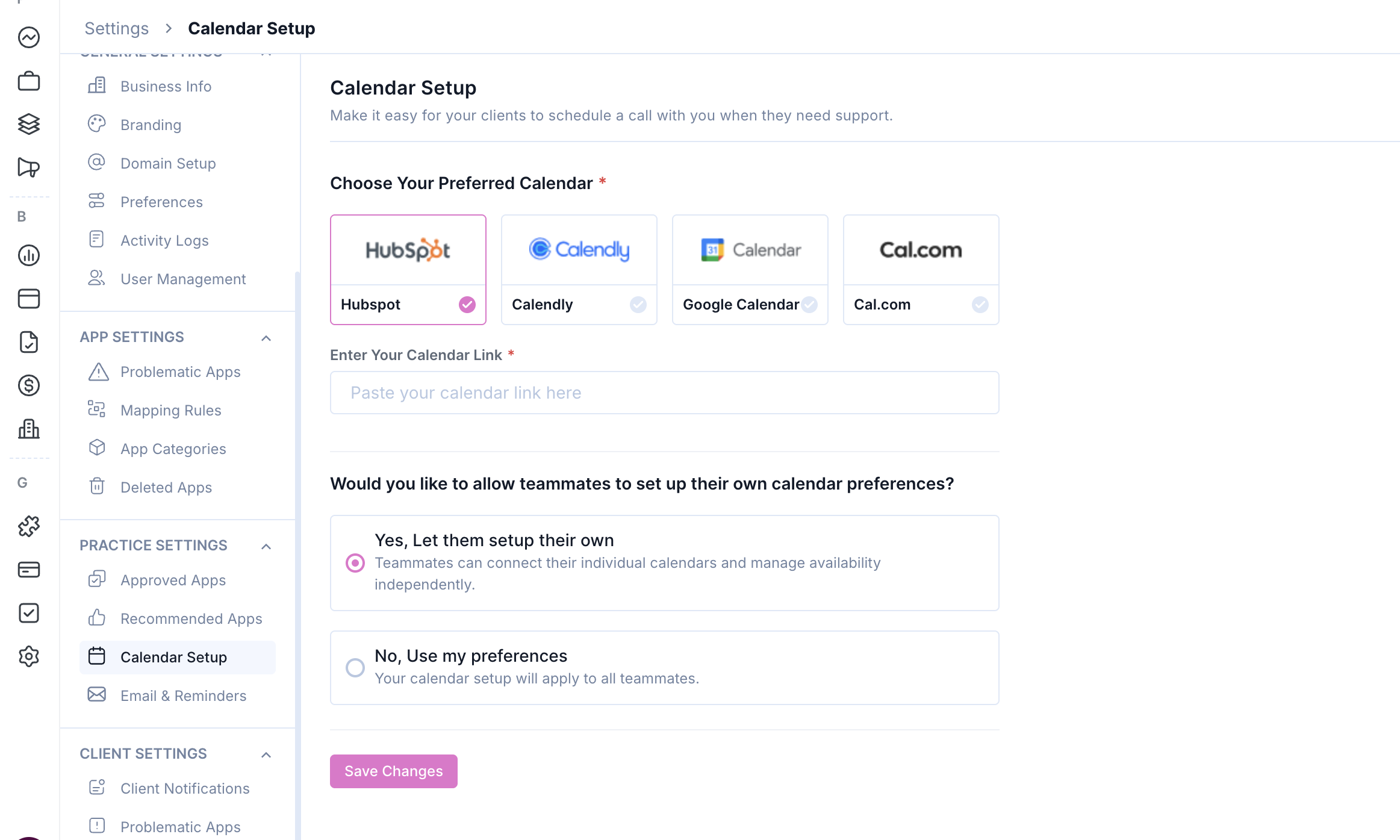
Configure calendar integration for scheduling support.
- Choose one platform: Hubspot, Calendly, Google Calendar, or Cal.com (mandatory)
- Either calendar link (mandatory)
- Set whether teammates can configure their own calendars or inherit shared setup.
Communication
The Communications page in AppVentory allows for the management of automated email settings directed toward clients. The primary function of this page is to enable or disable invitation emails based on how a client profile is created or activated.
App on Charge Rules
The App on Charge Rules page in AppVentory allows for the creation, view, and management of rules designed to automatically categorize transactions as client expenses.
Main Dashboard and Rules Table
The main dashboard provides a central overview of all active rules. Key elements include:
-
Search Functionality: A search bar at the top allows for quick filtering of existing rules by name.
-
Rules Table: Displays a structured breakdown of each rule with five key data points:
-
Rule Name: The descriptive identifier given to the rule (e.g., "Assigned Time", "Test Status").
-
Field Type: The classification parameter applied to the rule.
-
Scope: The frequency configuration, such as "One-time".
-
Scope Details: Specific behavior definitions, such as "Apply to existing spends".
-
Created Date: The exact date the rule was established.
-
-
Rule Deletion: A trash icon located at the end of each row allows individual rules to be removed.
-
Creation Trigger: A prominent Create App on Charge Rule button at the top right opens the configuration panel.
Create App on Charge Rule Panel
Clicking the creation button opens a sliding side panel on the right to configure a new rule via three primary parameters:
-
Rule Name: A text field to input a custom title for the rule.
-
Field Type: Selectable buttons to determine the data source for categorization. Options include:
-
App
-
Source Organization
-
Chart of Accounts
-
-
Scope: Defines the chronological application of the rule:
-
One-time: Applies the rule only once to historical/existing spends.
-
Ongoing: Applies the rule automatically every time the system synchronizes new spends.
-
Action buttons at the bottom of the panel allow the session to be finalized via Create Rule or dismissed via Cancel.
Invoice Number Setup
The Invoice Number Setup page in AppVentory allows users to customize the generation and formatting of automated invoice numbers. Located under the Practice Settings sub-menu in the left navigation sidebar, this interface features a Number Formatting control section on the left, an option to Reset To Default, and a global Save Changes button at the top right to commit configurations.
To ensure accuracy prior to saving, the right side of the page hosts a Preview card that provides a real-time Live Preview of the current naming convention alongside an Upcoming Sequence list showing how the subsequent five invoices will be numbered sequentially.
Client Settings
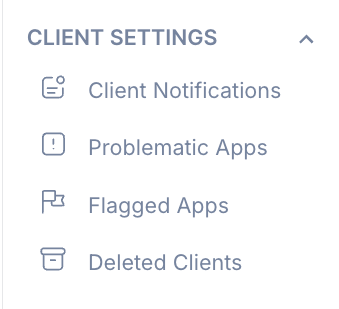
Client Notification
Control client-facing notifications.
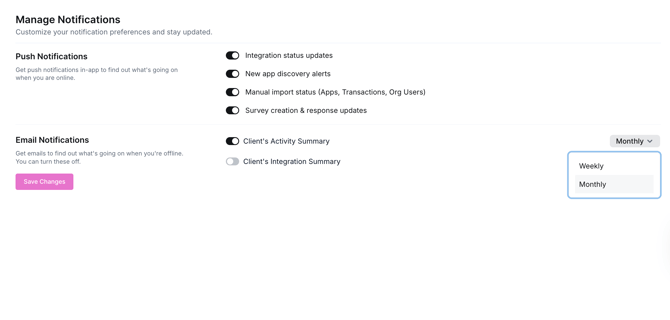
Push Notifications
- Integration status updates
Alerts when integrations with external systems are successful or have failed. - New app discovery alerts
Notifications triggered when new applications are identified within the environment. - Manual import status (Apps, Transactions, Org Users)
Provides status updates for manual imports related to apps, transaction records, or organization users. - Survey creation & response updates
Notifies when a survey is created or when responses are received.
Email Notifications
Email notifications allow users to stay informed about important updates when they are offline.
- Client's Activity Summary
Receive a summary of client-related activities. - Client's Integration Summary
Get updates summarizing the status and performance of integrations.
Frequency Selection
-
When an email notification toggle is enabled, a frequency dropdown becomes available for that notification
- Users can choose how often they want to receive the emails:
- Weekly
- Monthly - Each notification type supports its own frequency selection.
- When a toggle is disabled, the frequency dropdown for that notification is hidden and not accessible.
|
Note:
|
Problematic Apps
Set criteria for identifying problematic apps (same as Admin view):
- Non-cloud detection, user rating threshold, per-user cost limit, and price increase threshold
Flagged Apps
Manually mark apps as problematic.
- Use "Add Apps" to select one or more apps
- It is mandatory to Describe the problem for each app(s)
- Apps can later be removed via the delete icon if needed
Deleted Clients
The Deleted Clients section provides a centralized view of all clients that have been removed from the system. This allows administrators to track historical records and understand the context behind client deletions.
When to Use the Settings Module
- During initial AppVentory implementation and onboarding
- When setting up or updating business and branding details
- While adding or updating users and defining their permissions
- When automating repetitive tasks like expense classification
- To improve communication and engagement through notifications
- While reviewing activity for audits or security assessments
Benefits of Proper Settings Configuration
- Ensures secure and compliant use of the platform
- Supports scalable team management with minimal friction
- Enables automation for reducing manual work
- Provides a tailored experience aligned to business workflows
- Enhances visibility and accountability with audit traits
- Reinforces brand identity across communication.
The Settings section in AppVentory serves as the control hub for operational efficiency, account personalization, team management, and intelligent automation. With the recent release, organizations gain improved autonomy and visibility, enabling a secure and optimized environment that evolves with business growth.
If you need further assistance, please contact our dedicated customer support team at support@appventory.com, who will assist you with anything else you need. We take pride in providing exceptional service experiences, and our commitment to client satisfaction is at the heart of everything we do.