.png?width=187&height=40&name=AppVentory%20Logo%20(White).png)
What you get
Control at the point of purchase — the cheapest place to exercise it, because a tool that never gets bought never needs consolidating.
The queue
Go to App Request. Two tabs: App Requests for access to existing tools, Procurement Requests for new ones. Each row shows who asked, when, the app, its owner, who resolved it and the status.
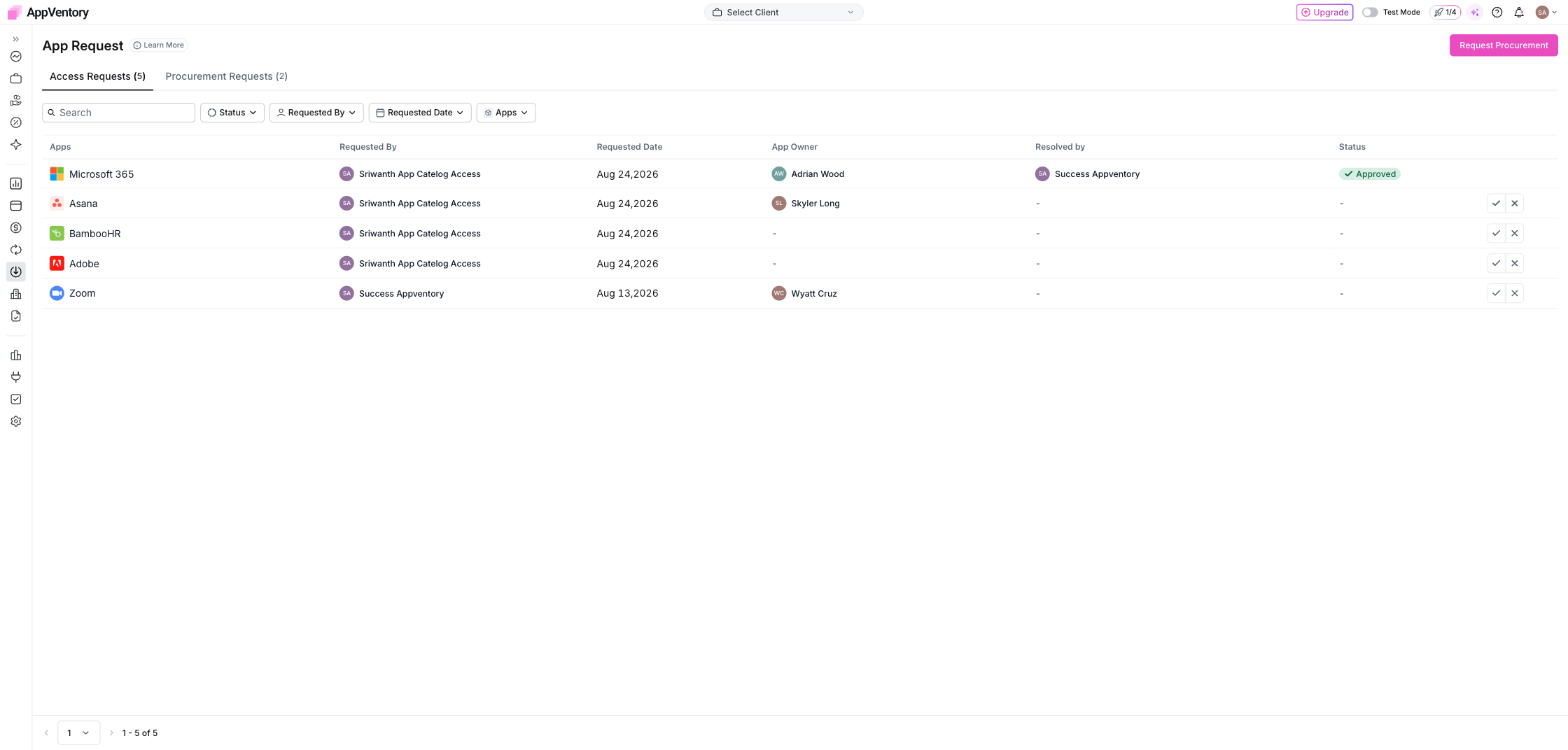
App Request queue with approve and reject actions
Steps
- Open the tab with pending items.
- For an access request: check the app's Users tab. Spare seats mean an immediate yes; none means a seat purchase — decide whether the person needs it more than someone with zero activity.
- For a procurement request: check Apps → Overlapping Apps and the catalogue for anything already doing that job.
- Approve or reject inline. A rejection with one line of reason — "we already have X for this" — saves the same request arriving again.
The one question
Do we already own something that does this? Ask it every time. It is the single habit that keeps the overlap list short.
After the decision
The request keeps the resolution status and who resolved it. If the decision leads to a new purchase, the app, spend and renewal details still need to arrive through the normal AppVentory inventory and data flows.
What you've unlocked
Next: Set up your approval flow