.png?width=187&height=40&name=AppVentory%20Logo%20(White).png)
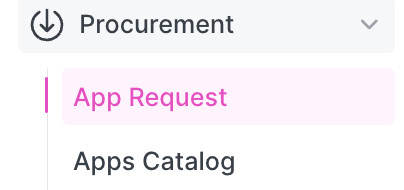
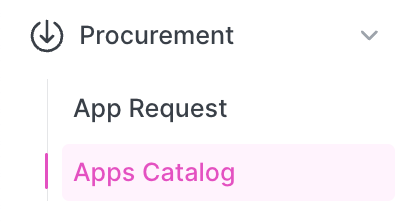
Procurement includes two subpages:
- App Request: Admin-side request management
- Apps Catalog: Employee-facing app discovery and request portal (currently under development)
Purpose
The Procurement system is designed to:
- Eliminate duplicate software purchases
- Improve usage of existing tools
- Provide employees with a clear way to request apps
- Standardize how requests are reviewed and approved
- Enable smarter decisions using AI-powered recommendations and internal data
Initial Setup
To activate Procurement and allow requests:
- Go to General > Settings
- Navigate to App Settings > Apps Catalog
- Enabling the following:
- Enable Apps Catalog
- Send Access Request
- Send Procurement Request
This setup is required for both admin and employee request flows.
Step 1: Admin Setup (Enable Apps Catalog & User Access)
Employees must be added before they can request apps.
Add a User
- Go to Organization > Users
- Add a new user
- Use a different email from the Admin portal
Grant Apps Catalog Access
- Go to General > Settings > App Settings > Apps Catalog
- Under Apps Catalog Access, select the added user
- Send the invitation
Once the user accepts the email invitation, the Organization Environment is activated.
Step 2: Employee Requests (Organization Environment)
After login, employees will see:
Apps Catalog (Under Development)
- Contains Recommended Apps and All Apps
- Users can:
- Request access to existing apps
- Request new app via Request Procurement
- View AI-suggested alternatives
My Apps
Requested Apps
- Shows all submitted requests
- Status: Pending, Approved, or Rejected
In-Use Apps
- Displays apps the user already has access to
- Allows additional requests
Request Behavior
- If the app already exists > Access Request
- If the app is new > Procurement Request
All requests are automatically sent to the Admin portal.
Step 3: Admin Review (App Request Page)
Go to Procurement > App Request
This page has two tabs:
Access Requests
- Request for existing apps
- Admin can Grant or Reject access
Procurement Requests
- Request for new apps
- Admin evaluates and approves or rejects purchases
Step 4: Understanding Request Routing (Admin Portal Behavior)
Within the App Request page, requests may appear across tabs depending on how they are submitted.
- When a request is initiated from one tab, it may be processed and displayed in the other tab based on request type and system handling.
- For example:
- A request initiated under Access Requests may appear in Procurement Requests if it is treated as a new app requirement.
- A request initiated under Procurement Requests may appear in Access Requests if it is identified as an existing app in the system.
| Note: The Apps Catalog in the Admin Portal is currently under development. However, requests can still be initiated from both Recommended Apps and All Apps tabs using the Request Procurement option. Any request submitted from these tabs will appear in the App Request > Procurement Requests tab for admin review. |
Step 5: Request Routing from Apps Catalog & My Apps (Organization Portal)
Requests submitted from the Organization Portal are automatically routed to the appropriate tabs in the Admin Portal based on how and where the request is initiated.
Apps Catalog > Recommended Apps
- When a user clicks Request Procurement, AI suggestions may appear
- After submission:
- The request is visible under My Apps > Requested Apps
- It appears in Admin Portal > App Request > Procurement Requests
Apps Catalog > All Apps
- If requesting an existing listed app:
> Appears in Admin Portal > Access Requests - If using Request Procurement to search for a new app:
> Appears in Admin Portal > Procurement Requests
My Apps > Requested Apps
- Displays all submitted requests and their statuses
- No new routing logic (view-only for tracking)
My Apps > In-Use Apps
- When submitting a new Request Procurement:
> Appears in Admin Portal > Procurement Requests
Important Behavior Summary:
- Requests for existing apps > routed to Access Requests
- Requests for new apps > routed to Procurement Requests
All requests made in the Organization Portal are automatically reflected in the Admin Portal for review.
|
Note: Requests submitted using the "Request Procurement" button are treated as new app requests and will appear in the Admin Portal > App Request > Procurement Requests tab. Requests made directly from existing apps (e.g., from All Apps) are treated as access requests and will appear in the Admin Portal > App Request > Access Requests tab. |
Step 6:Decision & Status Updates
- Admin approves or rejects requests
- Status updates are reflected back to employees in My Apps
- Requests remain visible for tracking and audit
Request Flow Summary
- Access Request (existing app)
> Appears in Access Requests (Admin side) - Procurement Request (new app)
> Appears in Procurment Requests (Admin side)
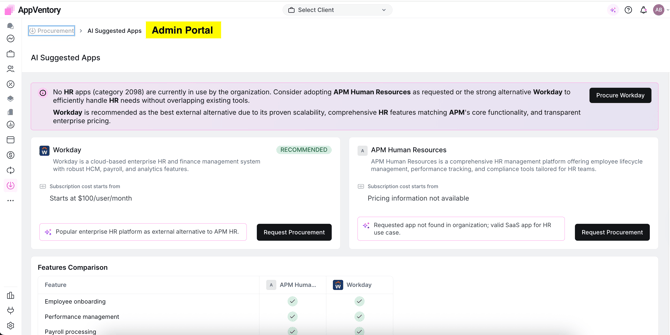
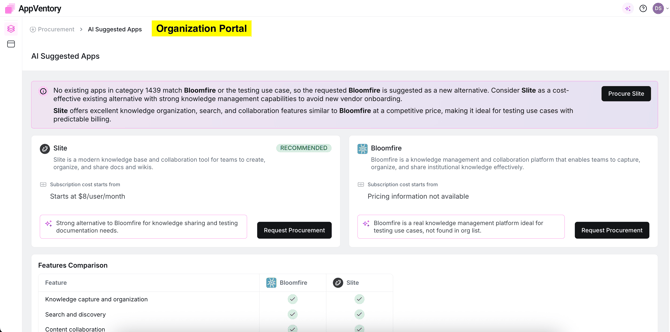
AI - Assisted Recommendations
During request submission:
- The system may suggest existing apps or alternatives
- Helps avoid unnecessary purchases
- Supports better decision-making
Additional Notes:
When Request Procurement is initiated, the system checks whether the application already exists in the tech stack.
- If the application exists, the request is converted into an Access Request and appears under the Access Requests tab.
- If the application does not exist, it is processed as a Procurement Request and appears under the Procurement Requests tab.
The Procurement feature ensures that software requests are handled in a structured, transparent, and efficient way. Employees can easily request tools, while admins retain full control over approvals-supported by AI insights and existing system data.
If you need further assistance, please contact our dedicated customer support team at support@appventory.com, who will assist you with anything else you need. We take pride in providing exceptional service experiences, and our commitment to client satisfaction is at the heart of everything we do.