---
title: Onboard a new client
description: Onboard a client into AppVentory using accounting data, CRM, bulk import, manual entry or self-onboarding, then connect the data needed for a first review.
---
[Skip to content](https://support.appventory.com/en-us/onboard-a-new-client#main-content)
[.png?width=187&height=40&name=AppVentory%20Logo%20(White).png)](https://support.appventory.com/?hsLang=en-us)
- [Product Update](https://support.appventory.com/en-us/release-notes)
- [Academy](https://academy.appventory.com/app)
- [Webinars](https://academy.appventory.com/app/webinars)
Open main navigation
Close main navigation
- [Product Update](https://support.appventory.com/en-us/release-notes)
- [Academy](https://academy.appventory.com/app)
- [Webinars](https://academy.appventory.com/app/webinars)
- [Contact us](https://24182720.hs-sites.com/submit-a-ticket)
[Contact us](https://24182720.hs-sites.com/submit-a-ticket?hsLang=en-us)
How can we help you?
- There are no suggestions because the search field is empty.
1. [AppVentory Knowledge Base](https://support.appventory.com/en-us?hsLang=en-us)
2. [For advisors](https://support.appventory.com/en-us/for-advisors?hsLang=en-us)
3. [Running a portfolio](https://support.appventory.com/en-us/for-advisors?hsLang=en-us#running-a-portfolio)
# Onboard a new client
## Choose the right way to bring a client into My Practice, then connect enough data to produce the first useful insight.
#### What you get
A client record in **My Practice** with a clear route to the data you need for the first useful review. The fastest route depends on where that client already exists today.
#### Choose the route that matches the client
**From your accounting connection.** If the client's organisation is already available through the accounting platform you connected, map that organisation to the right client. This is the best route when you want spend to arrive with the client setup — see **Map your client organisations after connecting**.
**Practice CRM.** If your practice uses **Xero Practice Manager**, connect it to bring client records into AppVentory without re-entering the same information — see **Connect your practice CRM**.
**Bulk Import.** Use a spreadsheet when you are bringing a larger client list into AppVentory at once.
**Add Manually.** Use **Clients** → **Add Client** when you only need to create one client or the client does not already exist in a connected source.
**Self-onboarding.** Use an **Enrollment Link** when you want the client to submit their own company and contact information. The current self-onboarding form is a guided flow for basic information, business profile and priorities. Review the submission in the client workflow before moving ahead.
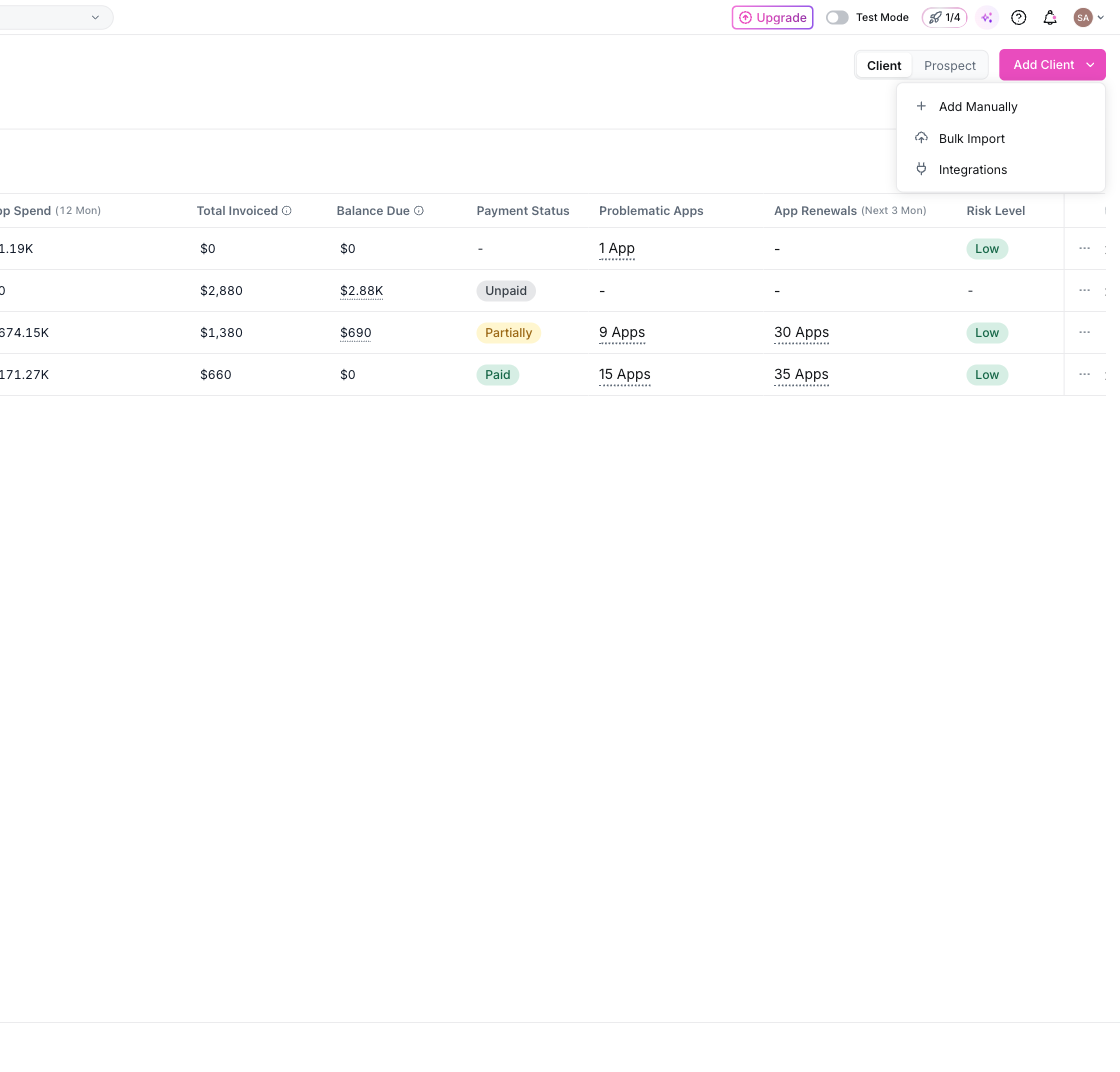
*Add Client entry points in My Practice*
#### Bring in enough data for the first review
Creating the client record is not the finish line. Add the source that supports the outcome you want to show:
- **Accounting data** for software spend and cost trends
- **Identity data** for users and app relationships
- Other setup only when it is relevant to the review you plan to run
When the client's data sits in a system you do not control, the client may need to authorise the connection from their side.
#### What "onboarded" should mean
Treat a client as onboarded when the record exists, the required source data is flowing, and you can show a first useful output — not merely when their name appears in **Clients**.
#### What you've unlocked
The client is ready to enter the portfolio workflow and, where needed, an individual client workspace for deeper analysis.
- [AppVentory](https://support.appventory.com/en-us/appventory?hsLang=en-us)
- [Start here](https://support.appventory.com/en-us/start-here?hsLang=en-us#main-content)
- [Start here](https://support.appventory.com/en-us/start-here?hsLang=en-us#start-here)
- [Running both](https://support.appventory.com/en-us/start-here?hsLang=en-us#running-both)
- [Wins you can get today](https://support.appventory.com/en-us/start-here?hsLang=en-us#wins-you-can-get-today)
- [Set up your data](https://support.appventory.com/en-us/set-up-your-data?hsLang=en-us#main-content)
- [Getting your data in](https://support.appventory.com/en-us/set-up-your-data?hsLang=en-us#getting-your-data-in)
- [Integrations](https://support.appventory.com/en-us/set-up-your-data?hsLang=en-us#integrations)
- [Your app inventory](https://support.appventory.com/en-us/set-up-your-data?hsLang=en-us#your-app-inventory)
- [See your spend](https://support.appventory.com/en-us/see-your-spend?hsLang=en-us#main-content)
- [Reporting what you found](https://support.appventory.com/en-us/see-your-spend?hsLang=en-us#reporting-what-you-found)
- [Find savings and risks](https://support.appventory.com/en-us/see-your-spend?hsLang=en-us#find-savings-and-risks)
- [Spend](https://support.appventory.com/en-us/see-your-spend?hsLang=en-us#spend)
- [Run your stack](https://support.appventory.com/en-us/run-your-stack?hsLang=en-us#main-content)
- [Surveys and team feedback](https://support.appventory.com/en-us/run-your-stack?hsLang=en-us#surveys-and-team-feedback)
- [Renewals](https://support.appventory.com/en-us/run-your-stack?hsLang=en-us#renewals)
- [Requests and procurement](https://support.appventory.com/en-us/run-your-stack?hsLang=en-us#requests-and-procurement)
- [For advisors](https://support.appventory.com/en-us/for-advisors?hsLang=en-us#main-content)
- [Running a portfolio](https://support.appventory.com/en-us/for-advisors?hsLang=en-us#running-a-portfolio)
- [AI Agents](https://support.appventory.com/en-us/for-advisors?hsLang=en-us#ai-agents)
- [Playbooks](https://support.appventory.com/en-us/playbooks?hsLang=en-us)
- [Admin and troubleshooting](https://support.appventory.com/en-us/admin-and-troubleshooting?hsLang=en-us)
- [Trust and security](https://support.appventory.com/en-us/trust-and-security?hsLang=en-us)
[](https://appventory.com?hsLang=en-us)
[mailto:email@email.com](mailto:email@email.com)
Copyright © 2026, AppVentory
Can’t find what you’re looking for?
Let us help you right now!
[Submit a Ticket](https://support.appventory.com/submit-a-ticket?hsLang=en-us)
[](https://www.linkedin.com/company/appventory/) [](https://www.youtube.com/@AppVentory-p5/videos)
Contact us
[hello@appventory.com](mailto:hello@appventory.com) [+1 (206) 338-6633](tel:+12063386633)
[For Accountants & MSPs ](https://www.appventory.com/for-accountants)
Solutions
[Grow Your Practice](https://www.appventory.com/solutions/for-practice/grow-revenue) [Win & retain clients](https://www.appventory.com/solutions/for-practice/win-and-retain-clients) [Expand tech advisory](https://www.appventory.com/solutions/for-practice/tech-stack-advisory) [Protect client software stack](https://www.appventory.com/solutions/for-practice/protect-client-stack) [Prove ROI to clients](https://www.appventory.com/solutions/for-practice/prove-roi-clients)
By role
[Partners & Firm Owners](https://www.appventory.com/by-role/accountants/partner-and-firm-owner) [Client Managers](https://www.appventory.com/by-role/accountants/client-managers) [Digital Transformation Team](https://www.appventory.com/by-role/accountants/digital-transformation-team) [Operations Head](https://www.appventory.com/by-role/accountants/operations-head)
[For Business ](https://www.appventory.com/for-businesses)
Solutions
[Reduce SaaS overspend](https://www.appventory.com/solutions/business/cut-saas-overspend) [Optimize renewals](https://www.appventory.com/solutions/business/optimize-every-renewal) [Remove risky apps](https://www.appventory.com/solutions/business/eliminate-unapproved-apps) [Simplify procurement](https://www.appventory.com/solutions/business/streamline-procurement) [Scale without extra headcount](https://www.appventory.com/solutions/business/scale-operation)
By role
[CFO / Finance Leader](https://www.appventory.com/by-role/businesses/cfo-and-finance-leaders) [IT Manager / Head of Ops](https://www.appventory.com/by-role/businesses/it-and-finance-managers) [SMB Owner](https://www.appventory.com/by-role/businesses/smb-business-owners) [Enterprise Procurement](https://www.appventory.com/by-role/businesses/enterprise-procurement)
Company
[About Us](https://www.appventory.com/about-us) [Blog](https://www.appventory.com/blog) [Changelog](https://support.appventory.com/en-us/release-notes?hsLang=en-us#appventory) [Customer Stories](https://www.appventory.com/customer-stories) [Pricing](https://www.appventory.com/pricing) [ROI calculator](https://www.appventory.com/roi-calculator) [Events](https://www.appventory.com/events)
Comparison pages
[AppVentory vs Torii](https://www.appventory.com/compare/torii-vs-appventory) [AppVentory vs Zylo](https://www.appventory.com/compare/zylo-vs-appventory) [AppVentory vs Vendr](https://www.appventory.com/compare/vendr-vs-appventory)
Privacy
[Privacy Policy](https://www.appventory.com/privacy-policy) [Saas Agreement](https://www.appventory.com/saas-agreement) [Terms of Service](https://www.appventory.com/terms-of-service) [Cookie Policy](https://www.appventory.com/cookie-policy) [Coachbar Trust Center](https://trust.coachbar.io/)
Our Products
[AppVentory Channels](https://channels.appventory.com/)
©2026 AppVentory. All Rights Reserved.