---
title: Notification preferences
description: Review AppVentory in-app notifications and client email settings so important integration, renewal and account signals reach the right people.
---
[Skip to content](https://support.appventory.com/en-us/notification-preferences#main-content)
[.png?width=187&height=40&name=AppVentory%20Logo%20(White).png)](https://support.appventory.com/?hsLang=en-us)
- [Product Update](https://support.appventory.com/en-us/release-notes)
- [Academy](https://academy.appventory.com/app)
- [Webinars](https://academy.appventory.com/app/webinars)
Open main navigation
Close main navigation
- [Product Update](https://support.appventory.com/en-us/release-notes)
- [Academy](https://academy.appventory.com/app)
- [Webinars](https://academy.appventory.com/app/webinars)
- [Contact us](https://24182720.hs-sites.com/submit-a-ticket)
[Contact us](https://24182720.hs-sites.com/submit-a-ticket?hsLang=en-us)
How can we help you?
- There are no suggestions because the search field is empty.
1. [AppVentory Knowledge Base](https://support.appventory.com/en-us?hsLang=en-us)
2. [Admin and troubleshooting](https://support.appventory.com/en-us/admin-and-troubleshooting?hsLang=en-us)
# Notification preferences
## Keep the alerts and client emails you will actually act on.
#### What you get
The alerts that matter, without the ones that train you to ignore them.
#### In-app notifications
The bell in the top bar collects integration approvals, sync progress and account events. **Mark all as read** clears it; **View All Notifications** opens the full list. The ones worth acting on immediately are access approvals from clients — "your access request has been approved, go to Access Requests to connect it" — because the connection does not happen until you follow through.
#### Email summaries
**Settings** → **Client Notifications** controls what goes out by email and how often:
- **Activity and integration summaries** — a monthly digest of what changed.
- **Client-facing renewal emails** — for advisors, a monthly note to each client with their upcoming renewals and recommendations, sent from your domain.
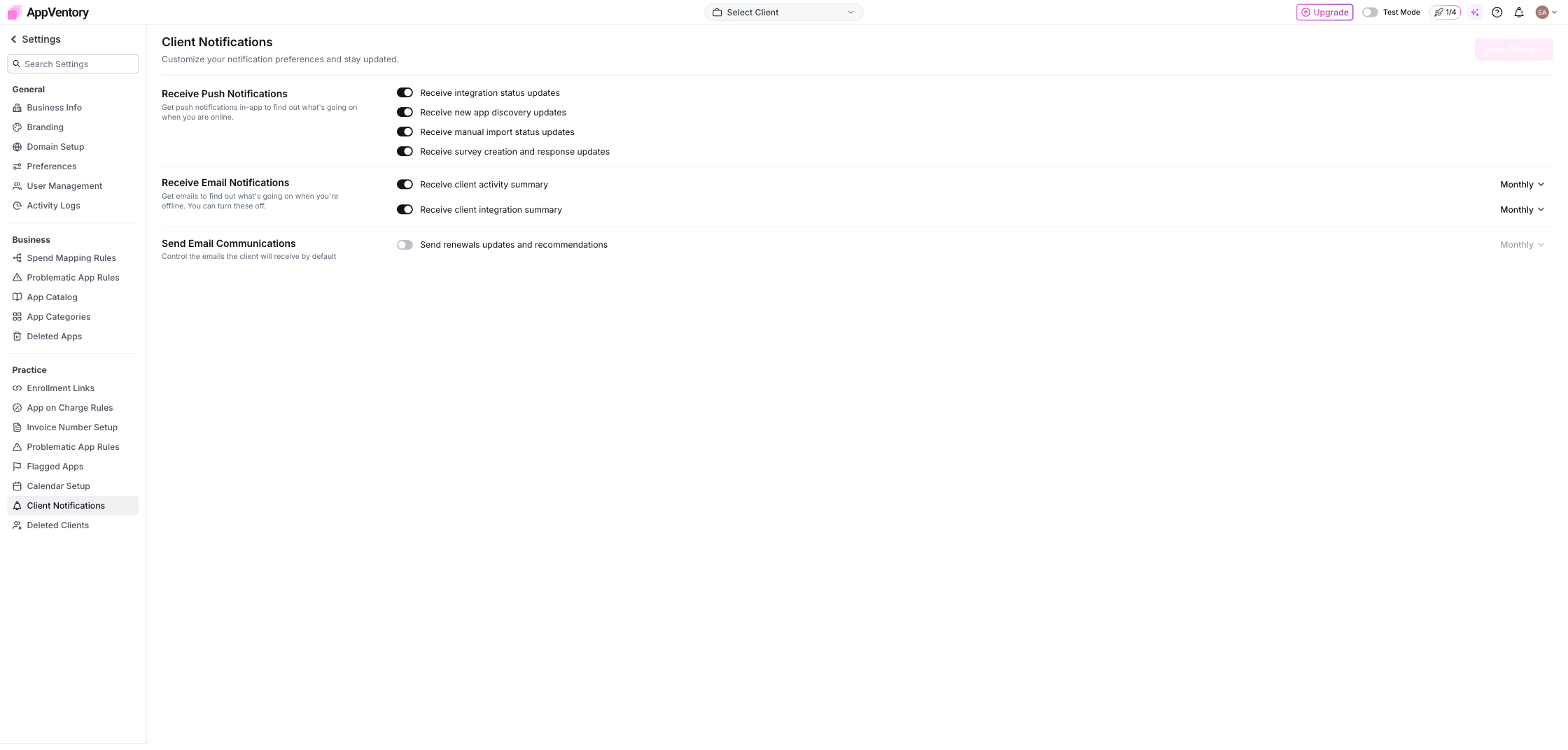
*Client Notifications settings*
#### Fewer, higher-signal
Turn on what you will act on and nothing else. An alert you routinely dismiss teaches you to dismiss the next one, and the one after that is the disconnected integration that cost a month of data.
For portfolio-wide work, use the portfolio views to scan across clients rather than turning every signal into an email. Keep notifications for events that genuinely need someone to act.
#### What you've unlocked
Next: **A connection stopped syncing**
- [AppVentory](https://support.appventory.com/en-us/appventory?hsLang=en-us)
- [Start here](https://support.appventory.com/en-us/start-here?hsLang=en-us#main-content)
- [Start here](https://support.appventory.com/en-us/start-here?hsLang=en-us#start-here)
- [Running both](https://support.appventory.com/en-us/start-here?hsLang=en-us#running-both)
- [Wins you can get today](https://support.appventory.com/en-us/start-here?hsLang=en-us#wins-you-can-get-today)
- [Set up your data](https://support.appventory.com/en-us/set-up-your-data?hsLang=en-us#main-content)
- [Getting your data in](https://support.appventory.com/en-us/set-up-your-data?hsLang=en-us#getting-your-data-in)
- [Integrations](https://support.appventory.com/en-us/set-up-your-data?hsLang=en-us#integrations)
- [Your app inventory](https://support.appventory.com/en-us/set-up-your-data?hsLang=en-us#your-app-inventory)
- [See your spend](https://support.appventory.com/en-us/see-your-spend?hsLang=en-us#main-content)
- [Reporting what you found](https://support.appventory.com/en-us/see-your-spend?hsLang=en-us#reporting-what-you-found)
- [Find savings and risks](https://support.appventory.com/en-us/see-your-spend?hsLang=en-us#find-savings-and-risks)
- [Spend](https://support.appventory.com/en-us/see-your-spend?hsLang=en-us#spend)
- [Run your stack](https://support.appventory.com/en-us/run-your-stack?hsLang=en-us#main-content)
- [Surveys and team feedback](https://support.appventory.com/en-us/run-your-stack?hsLang=en-us#surveys-and-team-feedback)
- [Renewals](https://support.appventory.com/en-us/run-your-stack?hsLang=en-us#renewals)
- [Requests and procurement](https://support.appventory.com/en-us/run-your-stack?hsLang=en-us#requests-and-procurement)
- [For advisors](https://support.appventory.com/en-us/for-advisors?hsLang=en-us#main-content)
- [Running a portfolio](https://support.appventory.com/en-us/for-advisors?hsLang=en-us#running-a-portfolio)
- [AI Agents](https://support.appventory.com/en-us/for-advisors?hsLang=en-us#ai-agents)
- [Playbooks](https://support.appventory.com/en-us/playbooks?hsLang=en-us)
- [Admin and troubleshooting](https://support.appventory.com/en-us/admin-and-troubleshooting?hsLang=en-us)
- [Trust and security](https://support.appventory.com/en-us/trust-and-security?hsLang=en-us)
[](https://appventory.com?hsLang=en-us)
[mailto:email@email.com](mailto:email@email.com)
Copyright © 2026, AppVentory
Can’t find what you’re looking for?
Let us help you right now!
[Submit a Ticket](https://support.appventory.com/submit-a-ticket?hsLang=en-us)
[](https://www.linkedin.com/company/appventory/) [](https://www.youtube.com/@AppVentory-p5/videos)
Contact us
[hello@appventory.com](mailto:hello@appventory.com) [+1 (206) 338-6633](tel:+12063386633)
[For Accountants & MSPs ](https://www.appventory.com/for-accountants)
Solutions
[Grow Your Practice](https://www.appventory.com/solutions/for-practice/grow-revenue) [Win & retain clients](https://www.appventory.com/solutions/for-practice/win-and-retain-clients) [Expand tech advisory](https://www.appventory.com/solutions/for-practice/tech-stack-advisory) [Protect client software stack](https://www.appventory.com/solutions/for-practice/protect-client-stack) [Prove ROI to clients](https://www.appventory.com/solutions/for-practice/prove-roi-clients)
By role
[Partners & Firm Owners](https://www.appventory.com/by-role/accountants/partner-and-firm-owner) [Client Managers](https://www.appventory.com/by-role/accountants/client-managers) [Digital Transformation Team](https://www.appventory.com/by-role/accountants/digital-transformation-team) [Operations Head](https://www.appventory.com/by-role/accountants/operations-head)
[For Business ](https://www.appventory.com/for-businesses)
Solutions
[Reduce SaaS overspend](https://www.appventory.com/solutions/business/cut-saas-overspend) [Optimize renewals](https://www.appventory.com/solutions/business/optimize-every-renewal) [Remove risky apps](https://www.appventory.com/solutions/business/eliminate-unapproved-apps) [Simplify procurement](https://www.appventory.com/solutions/business/streamline-procurement) [Scale without extra headcount](https://www.appventory.com/solutions/business/scale-operation)
By role
[CFO / Finance Leader](https://www.appventory.com/by-role/businesses/cfo-and-finance-leaders) [IT Manager / Head of Ops](https://www.appventory.com/by-role/businesses/it-and-finance-managers) [SMB Owner](https://www.appventory.com/by-role/businesses/smb-business-owners) [Enterprise Procurement](https://www.appventory.com/by-role/businesses/enterprise-procurement)
Company
[About Us](https://www.appventory.com/about-us) [Blog](https://www.appventory.com/blog) [Changelog](https://support.appventory.com/en-us/release-notes?hsLang=en-us#appventory) [Customer Stories](https://www.appventory.com/customer-stories) [Pricing](https://www.appventory.com/pricing) [ROI calculator](https://www.appventory.com/roi-calculator) [Events](https://www.appventory.com/events)
Comparison pages
[AppVentory vs Torii](https://www.appventory.com/compare/torii-vs-appventory) [AppVentory vs Zylo](https://www.appventory.com/compare/zylo-vs-appventory) [AppVentory vs Vendr](https://www.appventory.com/compare/vendr-vs-appventory)
Privacy
[Privacy Policy](https://www.appventory.com/privacy-policy) [Saas Agreement](https://www.appventory.com/saas-agreement) [Terms of Service](https://www.appventory.com/terms-of-service) [Cookie Policy](https://www.appventory.com/cookie-policy) [Coachbar Trust Center](https://trust.coachbar.io/)
Our Products
[AppVentory Channels](https://channels.appventory.com/)
©2026 AppVentory. All Rights Reserved.