---
title: Match your spend to the right apps
description: Review Needs Review and Unmapped spend in AppVentory, confirm the right app matches and create rules for recurring software transactions.
---
[Skip to content](https://support.appventory.com/en-us/match-your-spend-to-the-right-apps#main-content)
[.png?width=187&height=40&name=AppVentory%20Logo%20(White).png)](https://support.appventory.com/?hsLang=en-us)
- [Product Update](https://support.appventory.com/en-us/release-notes)
- [Academy](https://academy.appventory.com/app)
- [Webinars](https://academy.appventory.com/app/webinars)
Open main navigation
Close main navigation
- [Product Update](https://support.appventory.com/en-us/release-notes)
- [Academy](https://academy.appventory.com/app)
- [Webinars](https://academy.appventory.com/app/webinars)
- [Contact us](https://24182720.hs-sites.com/submit-a-ticket)
[Contact us](https://24182720.hs-sites.com/submit-a-ticket?hsLang=en-us)
How can we help you?
- There are no suggestions because the search field is empty.
1. [AppVentory Knowledge Base](https://support.appventory.com/en-us?hsLang=en-us)
2. [Set up your data](https://support.appventory.com/en-us/set-up-your-data?hsLang=en-us)
3. [Your app inventory](https://support.appventory.com/en-us/set-up-your-data?hsLang=en-us#your-app-inventory)
# Match your spend to the right apps
## Review suggested matches and unmapped transactions so app-level spend is based on the right ledger activity.
#### What you get
More reliable app-level spend. Until imported transactions are matched to the correct applications, cost and savings views can be incomplete or misleading.
#### The four tabs
Go to **Spend Overview**.
- **Mapped** — Matched and counting. What to do: nothing.
- **Needs Review** — AppVentory has suggested an app. What to do: confirm — start here.
- **Unmapped** — No match found. What to do: assign the software ones.
- **Archived** — Excluded from totals. What to do: nothing.
#### Start with Needs Review
Where AppVentory has suggested a match, the row can include the transaction, an **App Suggestion** and a **Confidence Score**. Treat the suggestion as a shortcut to review, not as proof that the match is correct.
1. Open **Needs Review**.
2. Read the suggestion against the description and amount.
3. **Confirm**. It moves to **Mapped** and starts counting.
4. Reject it if the suggestion is wrong.
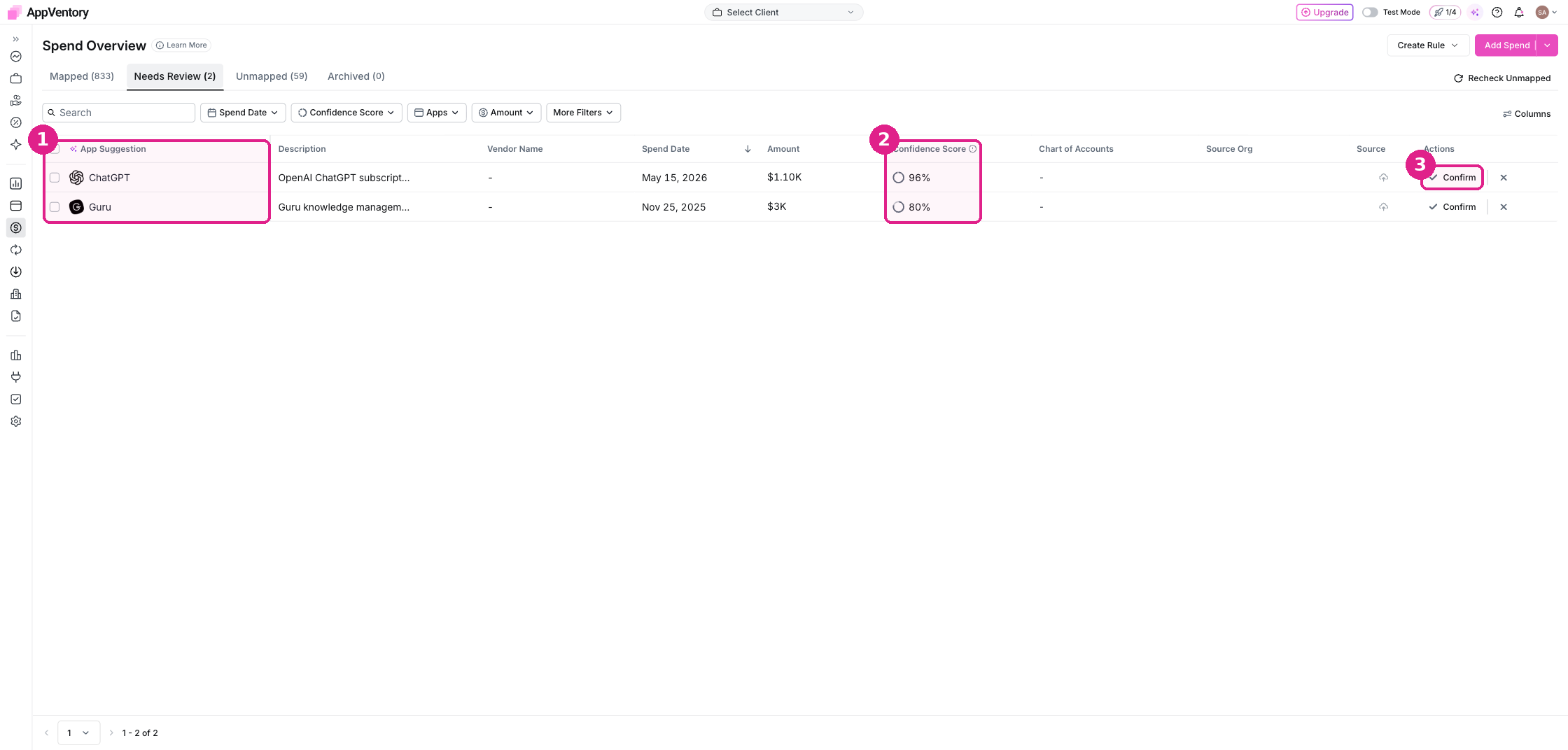
*Spend Overview Needs Review tab showing App Suggestion and Confidence Score*
Give the low-confidence rows a proper look — a wrong confirmation puts someone else's cost against your app.
#### Then Unmapped
1. Open **Unmapped** and sort by amount, largest first.
2. **Assign** each software payment to its app.
3. Use **Create Rule** for recurring vendors — one rule saves the same assignment twelve times a year.
4. Click **Recheck Unmapped** when you finish.
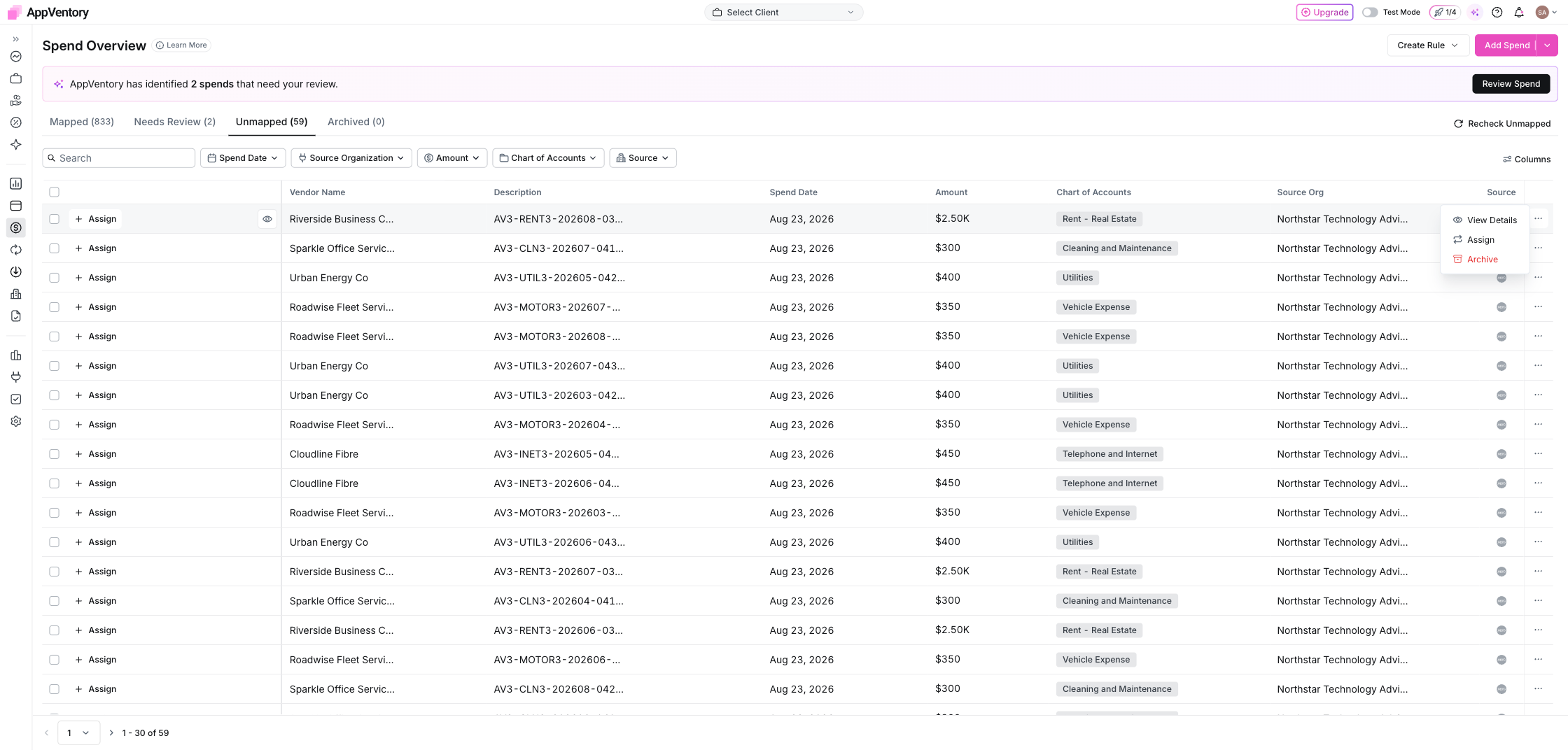
*Spend Overview Unmapped tab with a row's Assign action open*
**Needs Review** should normally be worked down as suggestions are confirmed or rejected. **Unmapped** can legitimately retain non-software expenses that do not belong against an app.
#### What you've unlocked
Your spend views now have a stronger basis for app-level cost, trends and savings analysis.
- [AppVentory](https://support.appventory.com/en-us/appventory?hsLang=en-us)
- [Start here](https://support.appventory.com/en-us/start-here?hsLang=en-us#main-content)
- [Start here](https://support.appventory.com/en-us/start-here?hsLang=en-us#start-here)
- [Running both](https://support.appventory.com/en-us/start-here?hsLang=en-us#running-both)
- [Wins you can get today](https://support.appventory.com/en-us/start-here?hsLang=en-us#wins-you-can-get-today)
- [Set up your data](https://support.appventory.com/en-us/set-up-your-data?hsLang=en-us#main-content)
- [Getting your data in](https://support.appventory.com/en-us/set-up-your-data?hsLang=en-us#getting-your-data-in)
- [Integrations](https://support.appventory.com/en-us/set-up-your-data?hsLang=en-us#integrations)
- [Your app inventory](https://support.appventory.com/en-us/set-up-your-data?hsLang=en-us#your-app-inventory)
- [See your spend](https://support.appventory.com/en-us/see-your-spend?hsLang=en-us#main-content)
- [Reporting what you found](https://support.appventory.com/en-us/see-your-spend?hsLang=en-us#reporting-what-you-found)
- [Find savings and risks](https://support.appventory.com/en-us/see-your-spend?hsLang=en-us#find-savings-and-risks)
- [Spend](https://support.appventory.com/en-us/see-your-spend?hsLang=en-us#spend)
- [Run your stack](https://support.appventory.com/en-us/run-your-stack?hsLang=en-us#main-content)
- [Surveys and team feedback](https://support.appventory.com/en-us/run-your-stack?hsLang=en-us#surveys-and-team-feedback)
- [Renewals](https://support.appventory.com/en-us/run-your-stack?hsLang=en-us#renewals)
- [Requests and procurement](https://support.appventory.com/en-us/run-your-stack?hsLang=en-us#requests-and-procurement)
- [For advisors](https://support.appventory.com/en-us/for-advisors?hsLang=en-us#main-content)
- [Running a portfolio](https://support.appventory.com/en-us/for-advisors?hsLang=en-us#running-a-portfolio)
- [AI Agents](https://support.appventory.com/en-us/for-advisors?hsLang=en-us#ai-agents)
- [Playbooks](https://support.appventory.com/en-us/playbooks?hsLang=en-us)
- [Admin and troubleshooting](https://support.appventory.com/en-us/admin-and-troubleshooting?hsLang=en-us)
- [Trust and security](https://support.appventory.com/en-us/trust-and-security?hsLang=en-us)
[](https://appventory.com?hsLang=en-us)
[mailto:email@email.com](mailto:email@email.com)
Copyright © 2026, AppVentory
Can’t find what you’re looking for?
Let us help you right now!
[Submit a Ticket](https://support.appventory.com/submit-a-ticket?hsLang=en-us)
[](https://www.linkedin.com/company/appventory/) [](https://www.youtube.com/@AppVentory-p5/videos)
Contact us
[hello@appventory.com](mailto:hello@appventory.com) [+1 (206) 338-6633](tel:+12063386633)
[For Accountants & MSPs ](https://www.appventory.com/for-accountants)
Solutions
[Grow Your Practice](https://www.appventory.com/solutions/for-practice/grow-revenue) [Win & retain clients](https://www.appventory.com/solutions/for-practice/win-and-retain-clients) [Expand tech advisory](https://www.appventory.com/solutions/for-practice/tech-stack-advisory) [Protect client software stack](https://www.appventory.com/solutions/for-practice/protect-client-stack) [Prove ROI to clients](https://www.appventory.com/solutions/for-practice/prove-roi-clients)
By role
[Partners & Firm Owners](https://www.appventory.com/by-role/accountants/partner-and-firm-owner) [Client Managers](https://www.appventory.com/by-role/accountants/client-managers) [Digital Transformation Team](https://www.appventory.com/by-role/accountants/digital-transformation-team) [Operations Head](https://www.appventory.com/by-role/accountants/operations-head)
[For Business ](https://www.appventory.com/for-businesses)
Solutions
[Reduce SaaS overspend](https://www.appventory.com/solutions/business/cut-saas-overspend) [Optimize renewals](https://www.appventory.com/solutions/business/optimize-every-renewal) [Remove risky apps](https://www.appventory.com/solutions/business/eliminate-unapproved-apps) [Simplify procurement](https://www.appventory.com/solutions/business/streamline-procurement) [Scale without extra headcount](https://www.appventory.com/solutions/business/scale-operation)
By role
[CFO / Finance Leader](https://www.appventory.com/by-role/businesses/cfo-and-finance-leaders) [IT Manager / Head of Ops](https://www.appventory.com/by-role/businesses/it-and-finance-managers) [SMB Owner](https://www.appventory.com/by-role/businesses/smb-business-owners) [Enterprise Procurement](https://www.appventory.com/by-role/businesses/enterprise-procurement)
Company
[About Us](https://www.appventory.com/about-us) [Blog](https://www.appventory.com/blog) [Changelog](https://support.appventory.com/en-us/release-notes?hsLang=en-us#appventory) [Customer Stories](https://www.appventory.com/customer-stories) [Pricing](https://www.appventory.com/pricing) [ROI calculator](https://www.appventory.com/roi-calculator) [Events](https://www.appventory.com/events)
Comparison pages
[AppVentory vs Torii](https://www.appventory.com/compare/torii-vs-appventory) [AppVentory vs Zylo](https://www.appventory.com/compare/zylo-vs-appventory) [AppVentory vs Vendr](https://www.appventory.com/compare/vendr-vs-appventory)
Privacy
[Privacy Policy](https://www.appventory.com/privacy-policy) [Saas Agreement](https://www.appventory.com/saas-agreement) [Terms of Service](https://www.appventory.com/terms-of-service) [Cookie Policy](https://www.appventory.com/cookie-policy) [Coachbar Trust Center](https://trust.coachbar.io/)
Our Products
[AppVentory Channels](https://channels.appventory.com/)
©2026 AppVentory. All Rights Reserved.