.png?width=187&height=40&name=AppVentory%20Logo%20(White).png)
What you get
The right people with the right access, and a record of who changed what.
Roles
The current practice model uses Principal Admin, Practice Admin, Practice Member and Business Admin. Choose the narrowest role that covers the person's actual job. The exact permission matrix should be confirmed against the live product before this article is published, because older internal role documentation describes a different role set.
Inviting
- Go to Settings → User Management.
- Invite a member with their email address and choose their role.
- They show as Pending until they accept, then Active.
An invitation that never arrives is almost always in a corporate mail filter. Resend, or tell them where to look.
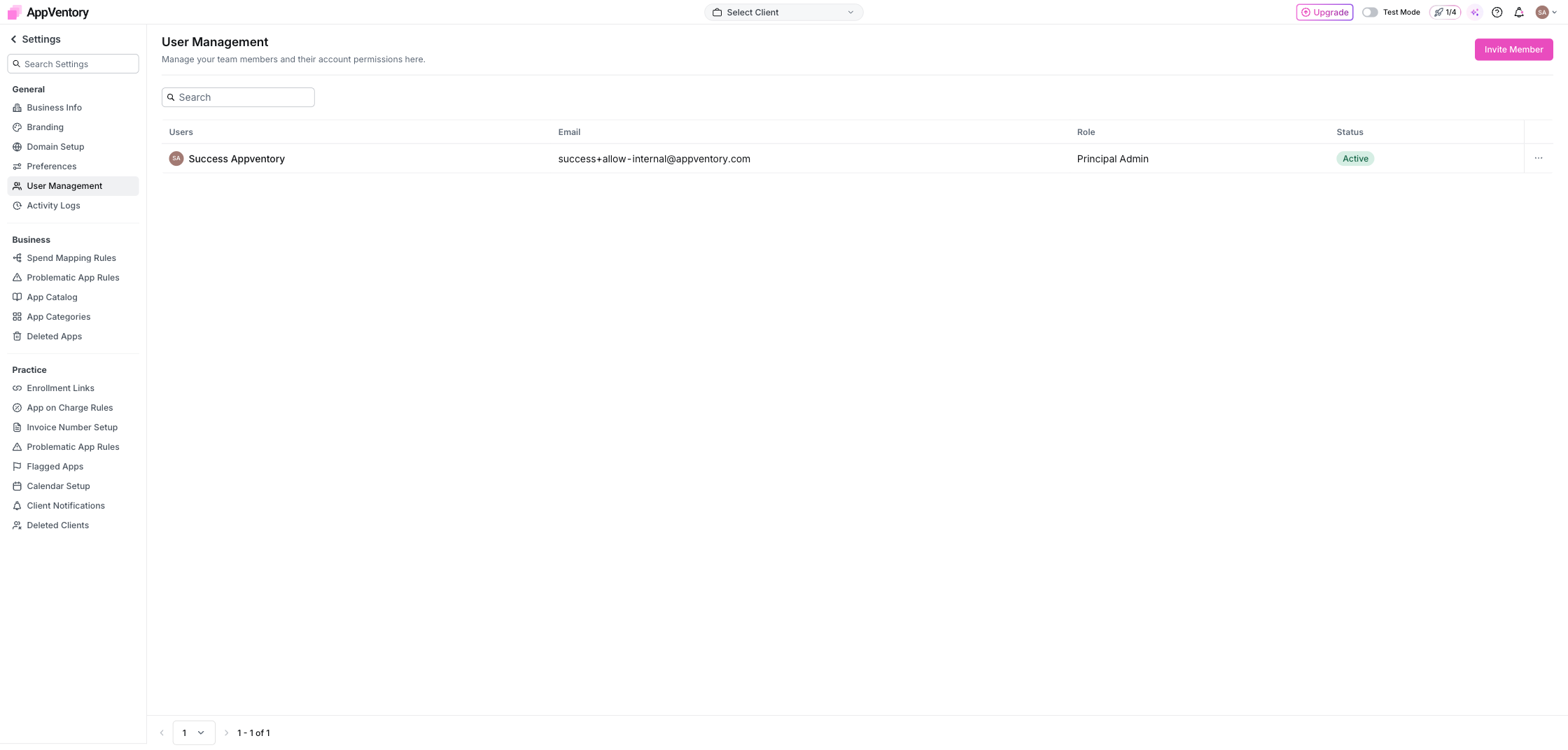
User Management showing members and roles
Removing and changing
Change a role from the same screen. Remove someone when they leave — and reassign any apps they owned, or those findings have nowhere to go.
The audit trail
Settings → Activity Logs records account activity that AppVentory exposes in the audit trail. When a number or configuration changed and nobody knows why, start there and use the recorded event details to narrow down what happened.
What you've unlocked
Next: Organisation settings