
What you get
Every client connection live, so no client's spend history has a hole in it.
Why connections drop
Tokens expire, the person who connected leaves, or a client changes their accounting subscription.
Steps
- Go to Integrations, open your accounting card's Manage menu → View Integrations.
- On Client Organizations, look for Inactive in the Status column.
- Open the row menu and choose Reactivate, then complete the sign-in.
- Use Re-Sync Active Organizations to pull the latest transactions for active clients.
- Check Unmapped for organisations that arrived without a client.
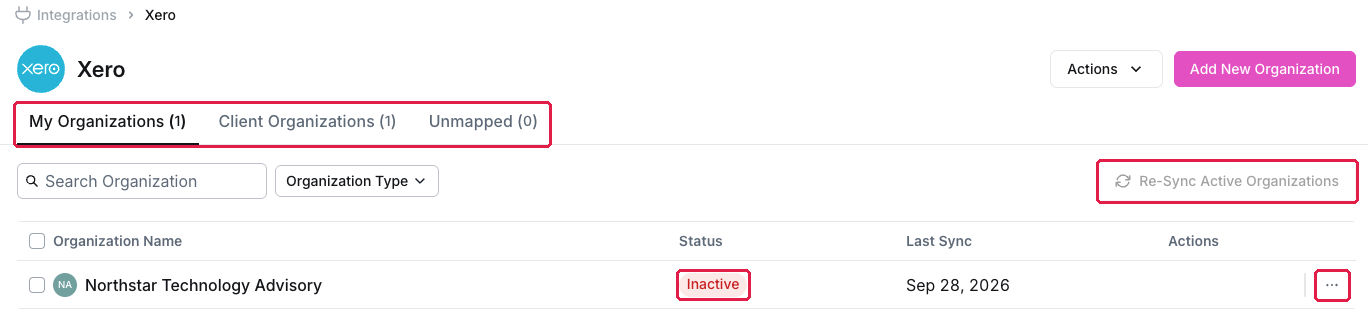
The accounting integration view: tabs, status, Re-Sync Active Organizations and row actions
The mistake to avoid
Do not delete and reconnect a client organisation to fix a sync problem. Reactivate it instead, so its history and mappings stay intact.
If it keeps dropping
Check who connected it. If that person has left or lost access to the client's file, reconnect with an account that will stay, or send an access request to the client.
What you've unlocked
Continuous data for every client. Next: Your portfolio dashboard.
Managing your own organisation's software? See Managing / reconnecting integrations.