.png?width=187&height=40&name=AppVentory%20Logo%20(White).png)
What you get
The work spread across your team instead of sitting with one person. Findings get actioned faster when the people who own the apps can see them.
Before you start
Email addresses, and a decision on who needs account-wide control.
Choose the role from the access you need
The roles available depend on whether the account is being used for Business, Practice, or client access. Use the role descriptions shown in User Management and give each person the lowest level of access that still lets them do their job.
Steps
- Go to Settings and open User Management.
- Invite a member.
- Enter their email address and choose their role.
- Send. They show as Pending until they accept, then Active.
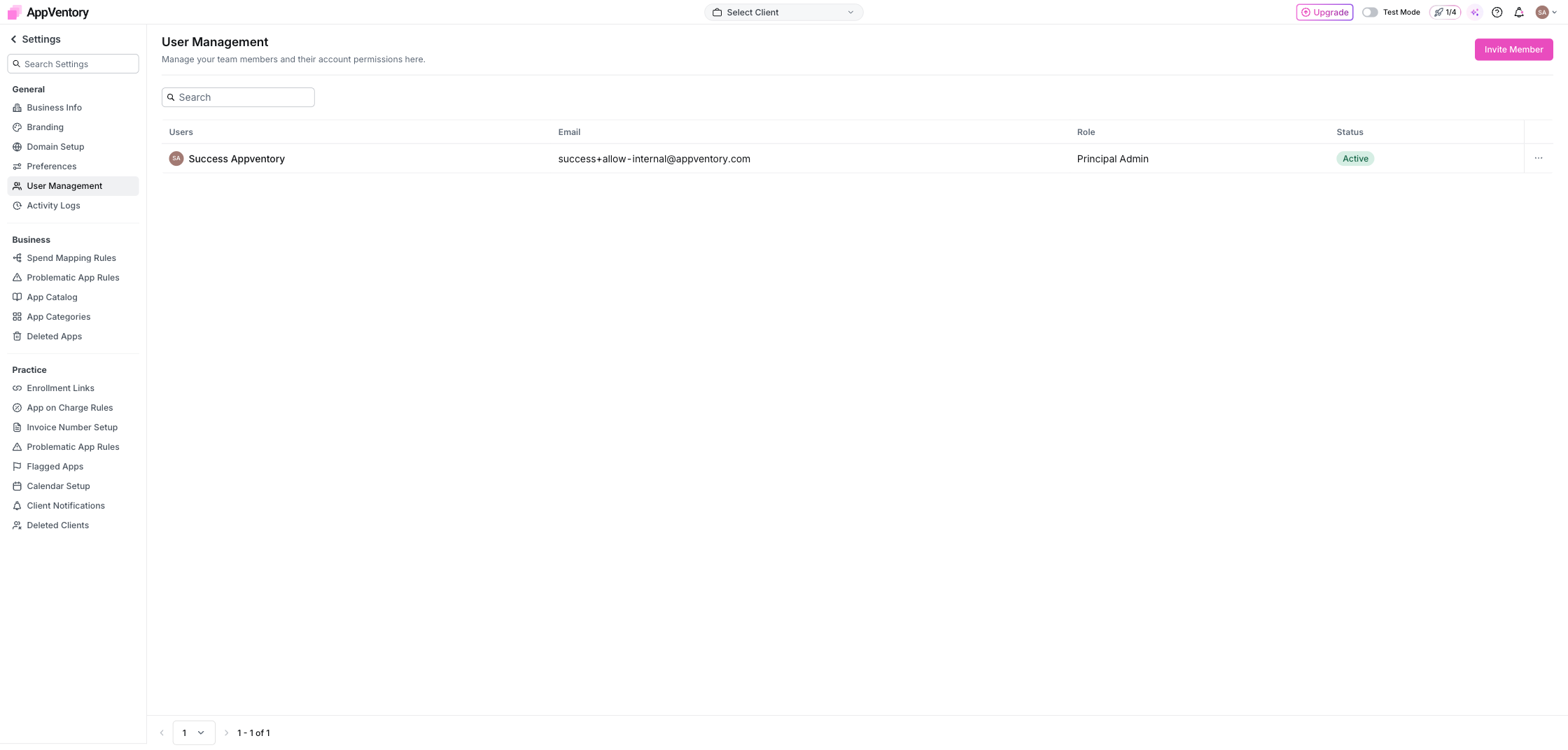
Settings User Management showing members and roles
If an invitation does not arrive, resend it and ask the recipient to check junk, quarantine or corporate mail filtering before escalating the issue.
What you've unlocked
Your team can now share the AppVentory workflow with access matched to their responsibilities instead of relying on one account administrator for every task.