.png?width=187&height=40&name=AppVentory%20Logo%20(White).png)
Overview and Purpose
The HubSpot integration enables synchronization of Referrals and Deals between AppVentory Channels and HubSpot. Referrals from AppVentory Channels are created in HubSpot as Lead records together with Contact and Company records, while Deals are synchronized with HubSpot deal objects.
The integration supports controlled data synchronization, property mapping, conflict resolution, selective sync using HubSpot lists, and monitoring through sync logs.
Key objectives:
- Maintain synchronized referral and deal data across systems
- Control data ownership during update conflicts
- Enable selective synchronization using HubSpot lists
- Support both automatic and manual sync workflows
- Provide auditability through logs and sync history
Functional Overview of HubSpot Integration Tabs
The HubSpot integration page contains four functional tabs that support configuration, monitoring, and troubleshooting. Configuration is performed mainly in Settings, while the remaining tabs allow for validation and audit purposes.
1. Settings tab
Purpose:
Allows to configure all integration behaviour, including connection status, sync direction, mappings, pipeline, fields, filters, and synchronization controls.
Key Functionalities:
- Connect or disconnect the HubSpot account
- Configure sync direction (one-way or two-way)
- Select master data source for conflict resolution
- Configure historical data sync window
- Enable or disable automatic sync
- Trigger manual sync
- Map referrals statuses
- Select deal pipelines and map deal stages
- Map HubSpot properties and AppVentory Channels fields
- Select HubSpot contact or deal lists (segments) for selective sync
2. Logs tab
Purpose:
Provides high-level confirmation that data objects are being synchronized successfully and shows the most recent integration activity per record.
When to Use This Tab:
- To verify whether individual referrals or deals were sent or updated
- To confirm success messages after a manual sync.
- To identify which records failed during synchronization.
3. Activity tab
Purpose:
Displays configuration-level and administrative actions taken within the integration settings.
What This Tab Displays:
- Changes to field mappings
- Changes to selected lists or pipelines
- Changes to property mappings
- Updated to referral subscription type mappings
- Time-stamped system activity entries
Typical Message Includes:
- Adding or removing HubSpot fields in AppVentory Channel Deals
- Updating referral subscription type mappings
- Changing contact list selection
When to Use This Tab:
- To confirm that configuration changes were saved
- To audit who modified the integration settings and what was changed
- To troubleshoot unexpected mapping behaviour.
|
Note: This tab does not confirm whether the data synced successfully. It only confirms that configuration actions occurred. |
4. Sync Logs tab
Purpose:
Provides execution-level results of each synchronization job.
When to Use This Tab:
- To verify whether the scheduled or manual sync job was executed
- To confirm record counts during testing
- To identify sync jobs that processed zero records
- To validate historical sync attempts
Example Use Cases:
- Verifying that a manual sync ran after disabling auto-sync
- Confirming that no deals synced due to 60-day historical limit
- Validating sync success after status changes
Prerequisites
- Active HubSpot account with required permissions
- Access to ChannelBoost (App Channels) integration settings
- Verified email address for HubSpot authentication
- HubSpot account role set as Owner for full configuration access (recommended for testing)
Step-by-Step Integration Process
Step 1: Connect HubSpot Account
Authentication is required to authorize data access between the two platforms.
Procedure
- Navigate to AppVentory Channels > Integrations > HubSpot.
- Select Connect.
- If already signed into HubSpot in another browser tab:
- Account detection occurs automatically.
- The authorization page appears directly.
- If not signed in:
- Enter HubSpot credentials or select Google sign-in.
- Select the HubSpot portal to connect.
- Approve requested permissions.
- Confirm redirection back to AppVentory Channels with connection status active.
|
Note:
|
Step 2: Configure Sync Direction and Data Conflict Resolution
This setting defines how data moves between AppVentory Channels and HubSpot and determines which system is treated as the authoritative source when the same record ID is updated in both platforms.
Procedure
- Open the Settings tab.
- Under Data sync between apps, select one of the following options from the Sync Direction dropdown:
- Data sync between apps: Enables two-way synchronization, allowing updates to flow between both systems.
- Data sync only to HubSpot: Enables one-way synchronization from AppVentory Channels to HubSpot only. Changes made in HubSpot will not sync back.
- Data sync only to AppVentory Channels: Enables one-way synchronization from HubSpot to AppVentory Channels only. Changes made in AppVentory Channels will not sync to HubSpot.
- When Data sync between apps is selected, the Data conflict resolution option becomes available.
- Under Data conflict resolution, select one of the following:
- Use AppVentory Channels Data: AppVentory Channels is treated as the master source. When the same record is changed in both systems, AppVentory Channels data overwrites HubSpot data during the next sync.
- Use HubSpot Data: HubSpot is treated as the master source. When conflicts occur, HubSpot data overwrites AppVentory Channels data during synchronization.
|
Note:
|
Step 3: Configure Historical Data Sync
This configuration allows for the retrieval of recent records from HubSpot when the integration is first activated.
Sync Availability
- Applicable Sync Directions for "Data sync between apps" (Two-way sync) and "Data sync only to AppVentory Channels" (One-way sync)
- Non-Applicable Direction only for "Data sync only to HubSpot" (One-way sync)
Procedure
- Navigate to the Historical Data Sync section
- Select one option:
- Last 30 days
- Last 60 days (maximum supported limit)
- Custom Date (Any date within the past 60 days).
- Upon selection, all records from the chosen date, until the current date will synchronize.
|
Note:
|
Step 4: Configure Automatic vs Manual Sync
Controls background synchronization behaviour and testing workflows
Procedure
- Locate Automatic Sync toggle.
- When enabled:
- Sync runs every 3 hours.
- For controlled testing:
- Disable automatic sync.
- Manual sync buttons become available.
- Select Manual Sync for:
- Referrals
- Deals
- Confirm sync initiation in Sync Logs.
Step 5: Verify Property Mapping
Ensures correct data placement in HubSpot properties.
Procedure:
Under HubSpot Configuration > Properties Mapping, review mappings.
Default HubSpot properties are auto-mapped where applicable, such as:
- First name
- Last name
- Company
Additional custom properties created in HubSpot will also become available for mapping once they exist in HubSpot.
Select Save Changes after confirmation.
Step 6: Configure Referral Status Mapping
Ensures referral lifecycle stages remain aligned.
Procedure
- Navigate to the Referrals Mapping section.
- Map Channel Boost statuses such as:
- New
- Qualified
- Won
- Lost
- Unqualified
- Map each status to the corresponding HubSpot Contact Status.
- Two-way arrow indicates bidirectional updates.
- Mapping is configurable and not mandatory, but at least one mapping is required for active referral synchronization.
|
Note: Referrals from AppVentory Channels are created in HubSpot as Leads, and associated Contact and Company records are created or linked during sync. |
Step 7: Configure Deals Pipeline and Status Mapping
Deal synchronization requires pipeline selection and dual-direction stage mapping.
Procedure
- Navigate to the Deals Mapping section.
- Configure:
- AppVentory Channels > HubSpot mapping
- HubSpot > AppVentory Channels mapping
- Multiple HubSpot deal stages may map to one AppVentory Channels stage.
- Select Save Changes.
|
Note:
|
Step 8: Validate Deal Sync Behavior
Ensures deal synchronization functions within system limits
Procedure
- If no deals appear in logs:
- Verify deal creation date.
- Deals older than 60 days will not sync.
- Modify the status of a recent deal (example: set to “Qualified to Buy”).
- Trigger manual sync.
- Confirm success in Sync Logs.
Step 9: Referral Prerequisites from HubSpot (Fields, Lists, Properties)
Referral options in AppVentory Channels are populated from the existing HubSpot configuration. These settings allow selection and mapping of HubSpot data — they do not create HubSpot structures.
Available referral prerequisites:
HubSpot Fields
- Controls which HubSpot contact fields are available for referral data sync and referral form display.
- Supported contact fields become selectable after the integration is connected.
Contact List
- Controls which HubSpot contacts are eligible for referral synchronization. Only contacts included in the selected list will sync.
- Lists must exist in HubSpot before they become selectable in AppVentory Channels.
HubSpot Property
- Allows mapping of referral classification and required attributes from HubSpot into AppVentory Channels.
- Existing HubSpot contact properties become selectable here and can be mapped to referral fields.
Referral Subscription Type Mapping (Optional)
Links AppVentory Channels referral subscription types (e.g., Prospect or Paid Client) to an existing HubSpot contact property.
- If mapped, the value is written to the selected HubSpot property.
- If not mapped, synced referrals default to Prospect.
Mapping uses existing HubSpot properties and does not create new properties.
|
Note: Property visibility depends on HubSpot configuration. Properties not created in HubSpot will not appear in AppVentory Channels. |
Step 10: Deal Prerequisites from HubSpot (Fields , Lists, Pipelines)
This step explains how deal-related configurations in HubSpot determine what is available under the Deals tab in AppVentory Channels
Under AppVentory Channels > HubSpot > Deals, three sections are available:
- HubSpot Fields
- Deal List
- Deal Pipeline
These elements are populated based on the information that exists in HubSpot.
How the prerequisites work
1. HubSpot Fields
It allows to control which HubSpot deal fields are available for deal data sync and deal form visibility.
- Deal fields become selectable only if they exist in HubSpot Deal Properties.
- The correct object type (Deal) must be selected in HubSpot property settings.
- Selected fields can be shown and allowed when creating or syncing deals from AppVentory Channels.
Controls which HubSpot Deals are eligible for synchronization
- The Deal list must be created in HubSpot.
- Deal lists must exist in HubSpot before selection in AppVentory Channels.
It allows for defining which sales pipeline and stage structure is used for deal status mapping and sync behaviour.
- Pipelines are configured in HubSpot under Settings > Data Management
- Test accounts typically include only the default Sales Pipeline
- Paid plans may include multiple pipelines.
- Each selected pipeline creates a separate deal-stage mapping table in AppVentory Channels
|
Note:
|
Step 11: Monitoring and Troubleshooting
Activity Tab
- Displays recent sync operations.
Logs Tab
- Displays system-level messages and integration health.
Sync Logs Tab
- Displays per-record results:
- Object type
- Timestamp
- Status (Success/Failed)
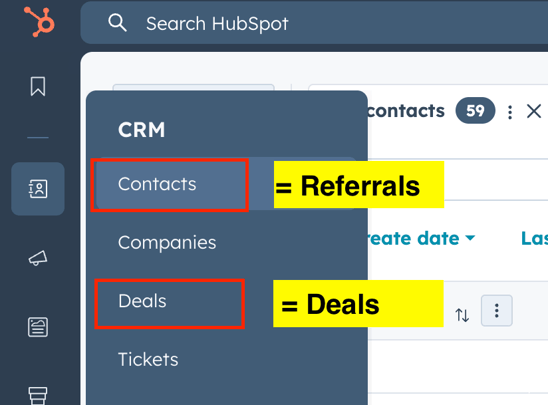
Verification in HubSpot
- Referrals > HubSpot Contacts
- Deals > HubSpot Deals
Custom columns can be added to a HubSpot table view using Edit Columns.
Post-Configuration Validation and Ongoing Monitoring
After completing the integration setup, it is recommended to perform basic validation and continue periodic monitoring to ensure stable synchronization between AppVentory Channels and HubSpot.
Key expectations after configuration:
- Referrals in AppVentory Channels appear as Contacts in HubSpot based on the configured sync direction and list filters.
- Deals are created or updated in the selected HubSpot pipelines with mapped stages and properties.
- Log shows per-record success or failure messages for recent sync activity.
- Sync Logs confirm that manual or scheduled sync jobs are executing and processing records.
- Activity reflects configuration and mapping changes made in the Settings tab.
If you need further assistance, please contact our dedicated customer support team at support@appventory.com, who will assist you with anything else you need. We take pride in providing exceptional service experiences, and our commitment to client satisfaction is at the heart of everything we do.