
What you get
A client-ready document built from that client's data: a quick one-pager or a full review.
Three ways in
- The client's record → Reports → Generate Report
- Reports → My Client Reports → Generate Report For and pick the client
- Practice Overview or Cost Savings → Create Report / Generate Report on the client's row
Which report
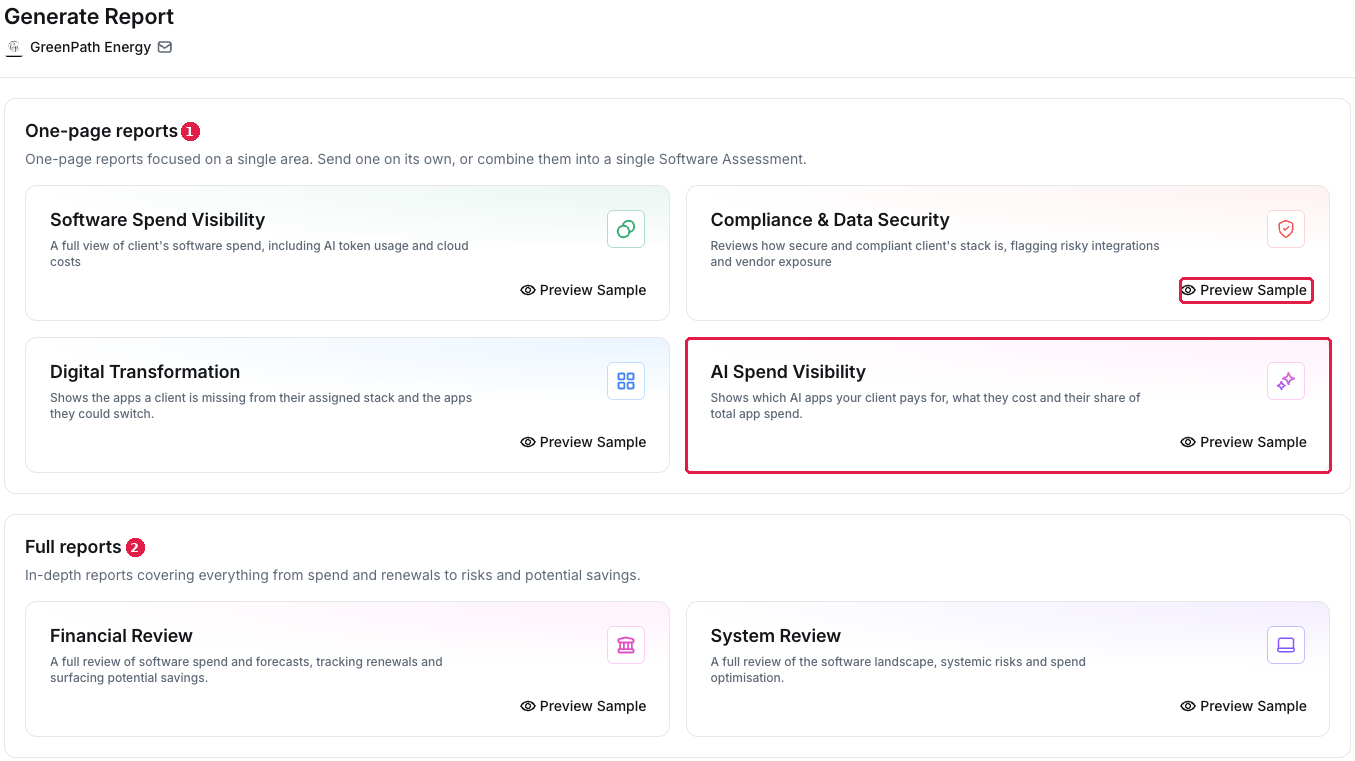
One-page reports — send one on its own, or combine them into a single Software Assessment:
- Software Spend Visibility — the client's full software spend, including AI token usage and cloud costs
- Compliance & Data Security — how secure and compliant the client's stack is
- Digital Transformation — apps missing from their stack and apps they could switch
- AI Spend Visibility — which AI apps the client pays for, what they cost and their share of total app spend
Full reports: Financial Review and System Review.
Each has Preview Sample, so you can see the format before you generate.
A client's Reports tab
Steps
- Sense-check the client's data first — see Sense-check a client report before it goes out.
- Open the picker by one of the routes above.
- Preview, choose the report and generate it.
- Find it under the client's Reports tab → Past Reports.
What you've unlocked
A deliverable for this client. Next: What goes into a client report.
Managing your own organisation's software? See Generate a report for one organisation.