.png?width=187&height=40&name=AppVentory%20Logo%20(White).png)
What you get
A more complete renewal calendar. Apps without a usable renewal date or billing cycle are harder to prioritise and can stay outside the workflow until the missing information is added.
What Needs Review means here
On Renewals, the Needs Review tab lists apps AppVentory knows you pay for but cannot date — the renewal date is missing, or the billing cycle shows as Unknown. This is a different Needs Review from the one on Spend Overview; here it means missing data, not unconfirmed match.
Steps
- Go to Renewals → Needs Review.
- Sort by Cost/User or annual spend, largest first.
- Use the inline + on the Renewal Date column to add the date.
- Set the billing cycle where it shows Unknown.
- Prioritise high-spend and business-critical applications first, then work through the remaining gaps over time.
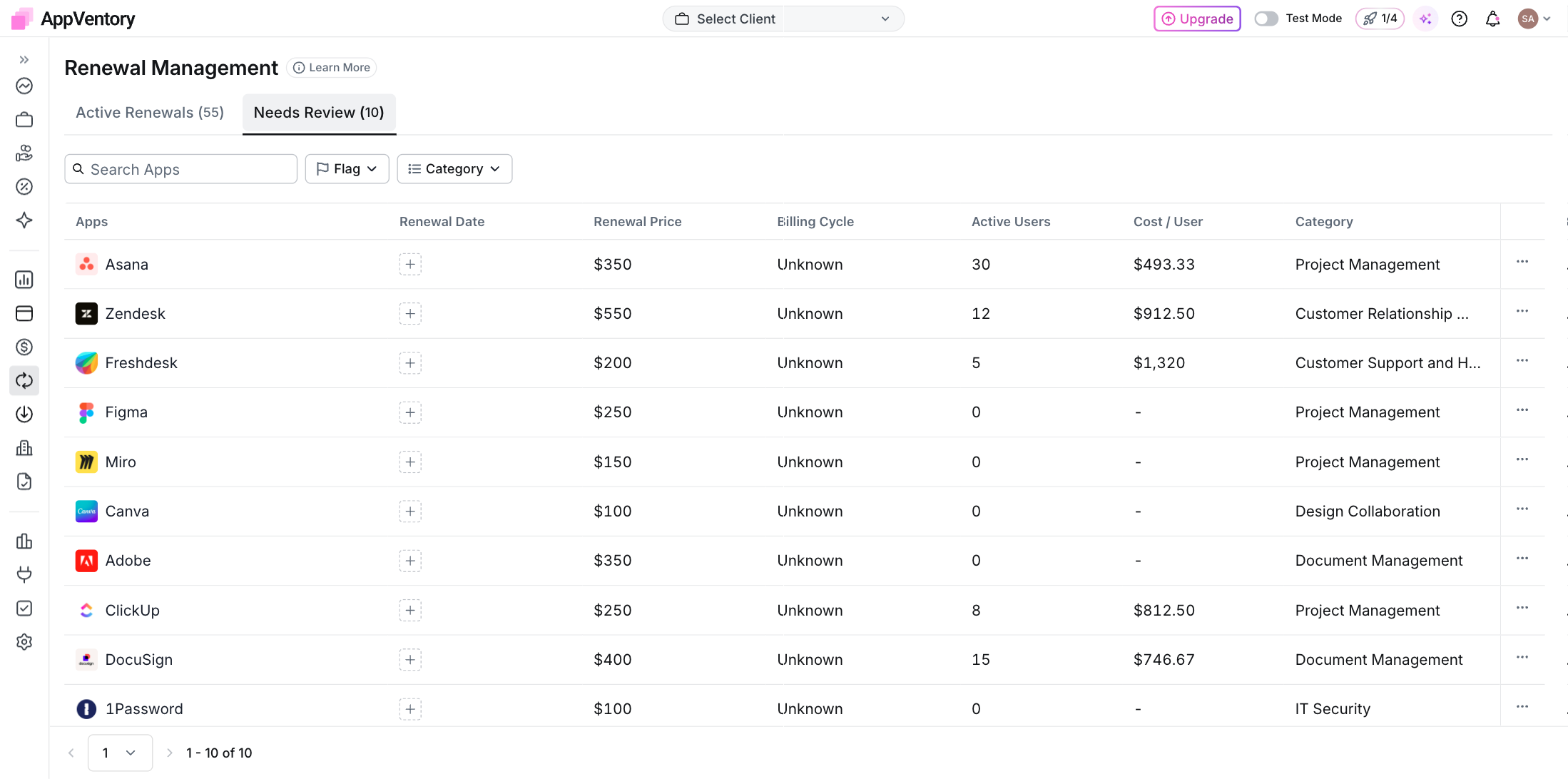
Renewals Needs Review with the inline add-date control
Where to find the date
Use the vendor's current billing or contract information first. The app's Contracts tab can also help where a contract has already been recorded. Transaction history can provide a useful clue, but do not assume the first or last payment date is the contractual renewal date without checking.
Why the billing cycle matters
An unknown cycle skews the forecast. A monthly plan recorded as annual shows a quiet year; an annual plan recorded as monthly overstates the bill twelve times.
What you've unlocked
More of your important applications can now enter the renewal workflow with the dates and billing context needed for prioritisation.