
What you get
Your clients' accounting data flowing into AppVentory through one connection, so each client's spend, savings and renewals can be calculated.
Before you start
- You need access to the accounting platform your practice uses for its clients.
- Connect from your practice, not from inside a client's workspace. Integrations is a Live Mode screen.
Supported accounting platforms
Xero, QuickBooks, FreshBooks (Beta), FreeAgent and Microsoft Dynamics 365 Business Central.
Steps
- Go to Integrations and find Accounting Software.
- Click Connect on your platform and complete the sign-in with the platform.
- When it finishes, open the card's Manage menu → View Integrations.
- Check the Client Organizations tab. Organisations that are not yet tied to a client wait in Unmapped.
- Map each one to its client record. See Map client organisations after connecting accounting.
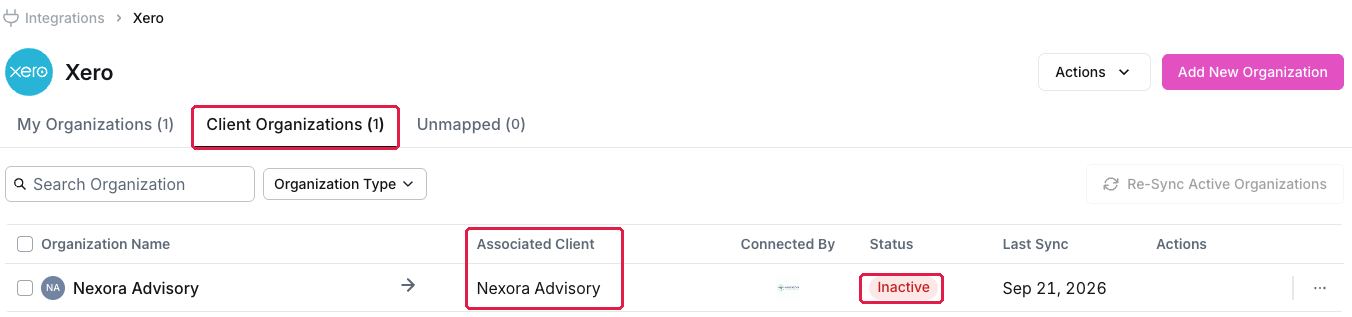
The accounting integration view: My Organizations, Client Organizations and Unmapped
If you are not an admin on a client's file
Send an access request instead of connecting it yourself. See Request access to a client's accounting file.
What the connection does — and does not do
AppVentory reads transactions to identify software spend. It does not change anything in the client's accounting file. See Is it safe to connect my accounting system?
What you've unlocked
Each mapped client now has spend data. Next: Check your clients' data is flowing.
Managing your own organisation's software? See Connect your accounting platform.