---
title: Connect your accounting platform
description: Connect your accounting platform to AppVentory to import software spend, map transactions to apps and start analysing costs across your software stack.
---
[Skip to content](https://support.appventory.com/en-us/connect-your-accounting-platform#main-content)
[.png?width=187&height=40&name=AppVentory%20Logo%20(White).png)](https://support.appventory.com/?hsLang=en-us)
- [Product Update](https://support.appventory.com/en-us/release-notes)
- [Academy](https://academy.appventory.com/app)
- [Webinars](https://academy.appventory.com/app/webinars)
Open main navigation
Close main navigation
- [Product Update](https://support.appventory.com/en-us/release-notes)
- [Academy](https://academy.appventory.com/app)
- [Webinars](https://academy.appventory.com/app/webinars)
- [Contact us](https://24182720.hs-sites.com/submit-a-ticket)
[Contact us](https://24182720.hs-sites.com/submit-a-ticket?hsLang=en-us)
How can we help you?
- There are no suggestions because the search field is empty.
1. [AppVentory Knowledge Base](https://support.appventory.com/en-us?hsLang=en-us)
2. [Set up your data](https://support.appventory.com/en-us/set-up-your-data?hsLang=en-us)
3. [Getting your data in](https://support.appventory.com/en-us/set-up-your-data?hsLang=en-us#getting-your-data-in)
# Connect your accounting platform
## Bring software spend into AppVentory from your accounting system so you can map costs to apps and analyse where the money is going.
#### What you get
Bring the **financial half of AppVentory's discovery picture** into the product. Accounting integrations contribute organisations, software-related vendors/apps, spend and transactions.
Once those transactions are matched to the right applications, AppVentory can turn ledger activity into app-level spend, trends and savings analysis. Pairing accounting data with an identity/workspace connection gives you the fuller picture: what the organisation is paying for alongside who is associated with and using the software.
For most customers, accounting is the fastest route to getting real financial data into the product.
#### Before you start
Admin access to your accounting platform, and **Live Mode** — integrations work against your real account.
#### Supported accounting platforms
AppVentory supports **Xero, QuickBooks, FreshBooks and Microsoft Dynamics 365 Business Central** for accounting data.
The connection flow varies by platform. Where your accounting login gives you access to more than one organisation, AppVentory may ask you which organisations to bring in. FreshBooks and Business Central also have their own platform-specific setup steps.
If you are an advisor and multiple client organisations arrive through the connection, map each one to the correct AppVentory client before moving on.
#### Steps
1. Go to **Integrations**.
2. Find your platform under **Accounting Software** and click **Connect**.
3. Sign in and approve the access on your platform's site.
4. Complete any platform-specific organisation, business or history selection you are shown.
5. Return to AppVentory and allow the first import to run.
Imported transactions appear in **Spend Overview**. Transactions that are not yet matched to an application remain available for review and mapping.
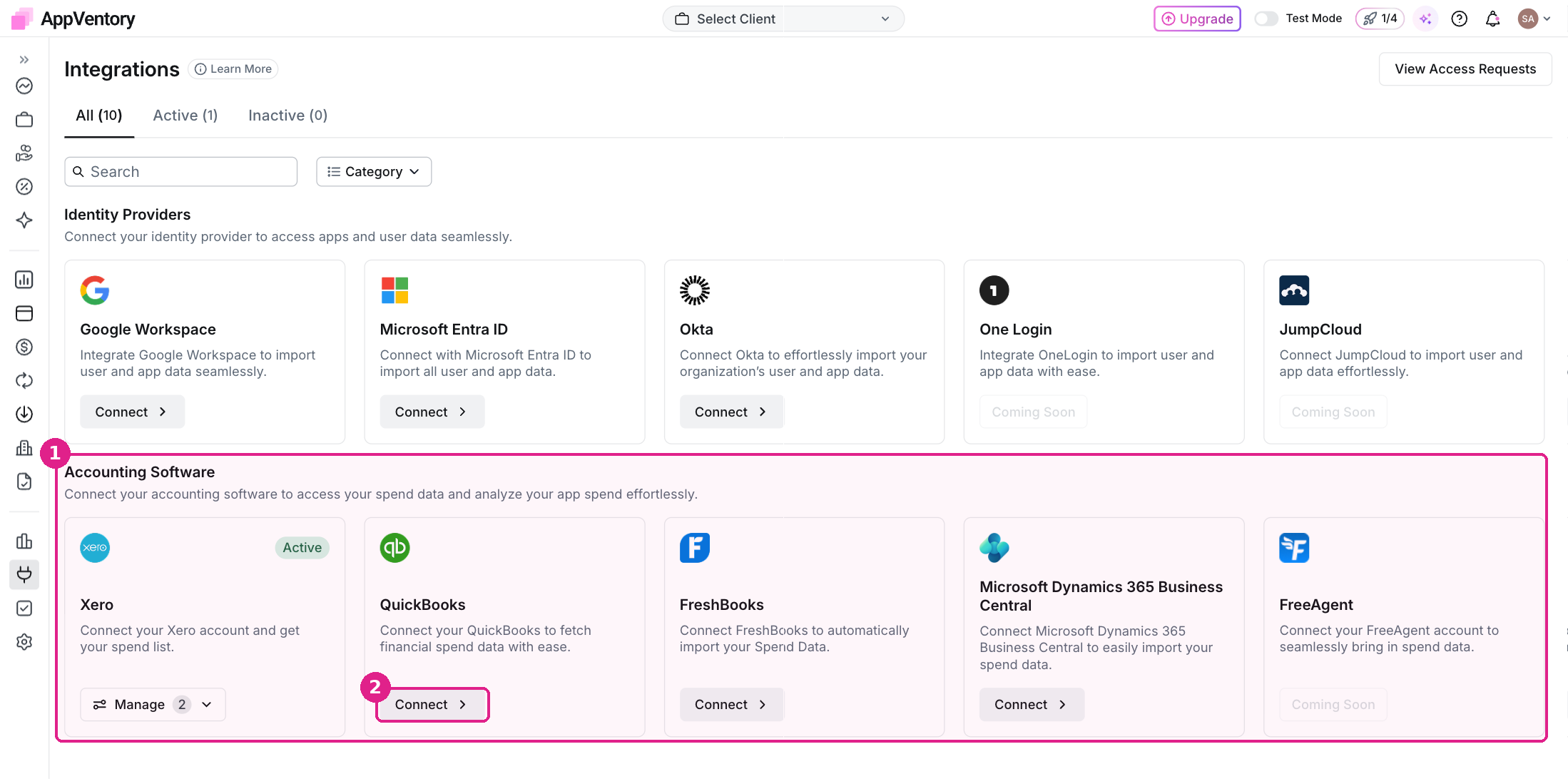
*Integrations page with the Accounting Software section and a Connect button*
Opening **Integrations** switches you out of **Test Mode** and says so. Switch it back on whenever you want the demo view again.
#### What the connection does — and does not do
Accounting integrations are used to bring relevant expense data **into AppVentory**. AppVentory does not post journals, create accounting transactions or replace your accounting platform as the system of record.
The accounting connection also does not automatically mean every transaction is attached to the correct app. **Mapping Rules** and manual review are what turn imported ledger lines into reliable app-level spend.
#### What you've unlocked
You now have the financial source needed to build app-level spend visibility. The next job is making sure each imported cost is connected to the right application.
- [AppVentory](https://support.appventory.com/en-us/appventory?hsLang=en-us)
- [Start here](https://support.appventory.com/en-us/start-here?hsLang=en-us#main-content)
- [Start here](https://support.appventory.com/en-us/start-here?hsLang=en-us#start-here)
- [Running both](https://support.appventory.com/en-us/start-here?hsLang=en-us#running-both)
- [Wins you can get today](https://support.appventory.com/en-us/start-here?hsLang=en-us#wins-you-can-get-today)
- [Set up your data](https://support.appventory.com/en-us/set-up-your-data?hsLang=en-us#main-content)
- [Getting your data in](https://support.appventory.com/en-us/set-up-your-data?hsLang=en-us#getting-your-data-in)
- [Integrations](https://support.appventory.com/en-us/set-up-your-data?hsLang=en-us#integrations)
- [Your app inventory](https://support.appventory.com/en-us/set-up-your-data?hsLang=en-us#your-app-inventory)
- [See your spend](https://support.appventory.com/en-us/see-your-spend?hsLang=en-us#main-content)
- [Reporting what you found](https://support.appventory.com/en-us/see-your-spend?hsLang=en-us#reporting-what-you-found)
- [Find savings and risks](https://support.appventory.com/en-us/see-your-spend?hsLang=en-us#find-savings-and-risks)
- [Spend](https://support.appventory.com/en-us/see-your-spend?hsLang=en-us#spend)
- [Run your stack](https://support.appventory.com/en-us/run-your-stack?hsLang=en-us#main-content)
- [Surveys and team feedback](https://support.appventory.com/en-us/run-your-stack?hsLang=en-us#surveys-and-team-feedback)
- [Renewals](https://support.appventory.com/en-us/run-your-stack?hsLang=en-us#renewals)
- [Requests and procurement](https://support.appventory.com/en-us/run-your-stack?hsLang=en-us#requests-and-procurement)
- [For advisors](https://support.appventory.com/en-us/for-advisors?hsLang=en-us#main-content)
- [Running a portfolio](https://support.appventory.com/en-us/for-advisors?hsLang=en-us#running-a-portfolio)
- [AI Agents](https://support.appventory.com/en-us/for-advisors?hsLang=en-us#ai-agents)
- [Playbooks](https://support.appventory.com/en-us/playbooks?hsLang=en-us)
- [Admin and troubleshooting](https://support.appventory.com/en-us/admin-and-troubleshooting?hsLang=en-us)
- [Trust and security](https://support.appventory.com/en-us/trust-and-security?hsLang=en-us)
[](https://appventory.com?hsLang=en-us)
[mailto:email@email.com](mailto:email@email.com)
Copyright © 2026, AppVentory
Can’t find what you’re looking for?
Let us help you right now!
[Submit a Ticket](https://support.appventory.com/submit-a-ticket?hsLang=en-us)
[](https://www.linkedin.com/company/appventory/) [](https://www.youtube.com/@AppVentory-p5/videos)
Contact us
[hello@appventory.com](mailto:hello@appventory.com) [+1 (206) 338-6633](tel:+12063386633)
[For Accountants & MSPs ](https://www.appventory.com/for-accountants)
Solutions
[Grow Your Practice](https://www.appventory.com/solutions/for-practice/grow-revenue) [Win & retain clients](https://www.appventory.com/solutions/for-practice/win-and-retain-clients) [Expand tech advisory](https://www.appventory.com/solutions/for-practice/tech-stack-advisory) [Protect client software stack](https://www.appventory.com/solutions/for-practice/protect-client-stack) [Prove ROI to clients](https://www.appventory.com/solutions/for-practice/prove-roi-clients)
By role
[Partners & Firm Owners](https://www.appventory.com/by-role/accountants/partner-and-firm-owner) [Client Managers](https://www.appventory.com/by-role/accountants/client-managers) [Digital Transformation Team](https://www.appventory.com/by-role/accountants/digital-transformation-team) [Operations Head](https://www.appventory.com/by-role/accountants/operations-head)
[For Business ](https://www.appventory.com/for-businesses)
Solutions
[Reduce SaaS overspend](https://www.appventory.com/solutions/business/cut-saas-overspend) [Optimize renewals](https://www.appventory.com/solutions/business/optimize-every-renewal) [Remove risky apps](https://www.appventory.com/solutions/business/eliminate-unapproved-apps) [Simplify procurement](https://www.appventory.com/solutions/business/streamline-procurement) [Scale without extra headcount](https://www.appventory.com/solutions/business/scale-operation)
By role
[CFO / Finance Leader](https://www.appventory.com/by-role/businesses/cfo-and-finance-leaders) [IT Manager / Head of Ops](https://www.appventory.com/by-role/businesses/it-and-finance-managers) [SMB Owner](https://www.appventory.com/by-role/businesses/smb-business-owners) [Enterprise Procurement](https://www.appventory.com/by-role/businesses/enterprise-procurement)
Company
[About Us](https://www.appventory.com/about-us) [Blog](https://www.appventory.com/blog) [Changelog](https://support.appventory.com/en-us/release-notes?hsLang=en-us#appventory) [Customer Stories](https://www.appventory.com/customer-stories) [Pricing](https://www.appventory.com/pricing) [ROI calculator](https://www.appventory.com/roi-calculator) [Events](https://www.appventory.com/events)
Comparison pages
[AppVentory vs Torii](https://www.appventory.com/compare/torii-vs-appventory) [AppVentory vs Zylo](https://www.appventory.com/compare/zylo-vs-appventory) [AppVentory vs Vendr](https://www.appventory.com/compare/vendr-vs-appventory)
Privacy
[Privacy Policy](https://www.appventory.com/privacy-policy) [Saas Agreement](https://www.appventory.com/saas-agreement) [Terms of Service](https://www.appventory.com/terms-of-service) [Cookie Policy](https://www.appventory.com/cookie-policy) [Coachbar Trust Center](https://trust.coachbar.io/)
Our Products
[AppVentory Channels](https://channels.appventory.com/)
©2026 AppVentory. All Rights Reserved.