
Setup guide · AI Spend Management
What you get
AppVentory tracks your Gemini and Vertex AI spend by reading Google Cloud's billing export in BigQuery. This guide walks you through turning that export on and finding the billing table ID that AppVentory asks for.
Before you start: check your permissions
In Google Cloud, you'll need:
- Billing Account Administrator or Billing Account Costs Manager on the Cloud Billing account that pays for Gemini or Vertex AI
- BigQuery User (or higher) on the project that will store the billing data
- Project Creator, only if you plan to create a new project in step 1
Later, in AppVentory, someone with the Owner role on that project runs two short commands to grant AppVentory read access.
Step 1: Choose a project for your billing data
Pick an existing Google Cloud project to store the billing data, or create a new one just for billing, which is easier to manage. The project must have billing turned on and be linked to the same billing account that pays for Gemini or Vertex AI. If it isn't, Google won't offer it as a destination in step 3.
Step 2: Create a BigQuery dataset
- Open BigQuery and select your project from step 1 in the project picker.
- Open the ⋮ menu next to the project and select Create dataset.
- Enter a dataset ID, such as
all_billing_data. - Select Create dataset. It now appears under your project.
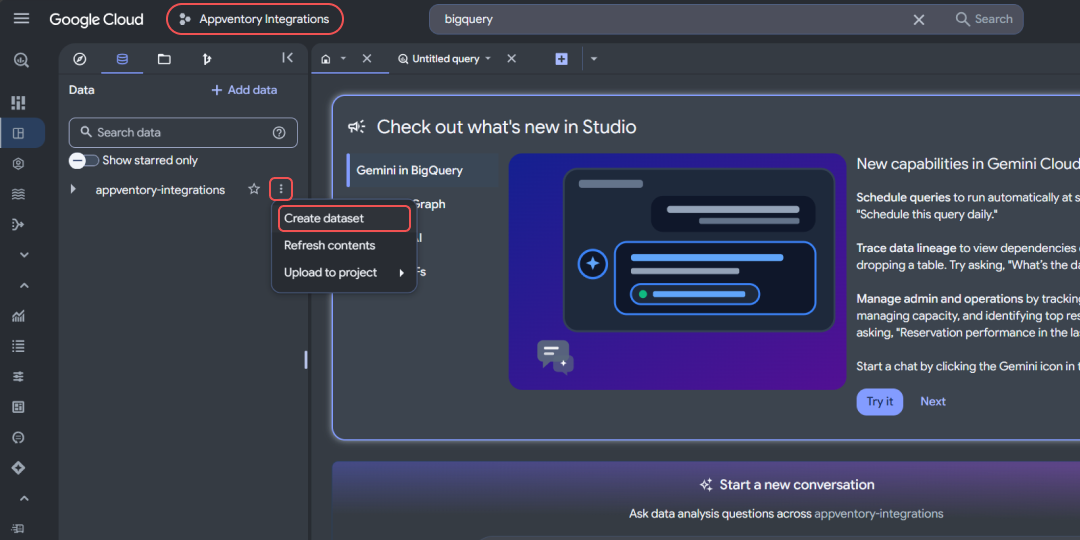
BigQuery: open the ⋮ menu next to your project and select Create dataset
Step 3: Turn on billing export
- From the navigation menu, open Billing.
- If you have more than one billing account, choose the one that pays for Gemini or Vertex AI. Only projects paid by this account are exported.
- Select Billing export, then Enable detailed export.
Already exporting standard usage cost? AppVentory accepts that table too, so you can skip to step 4.
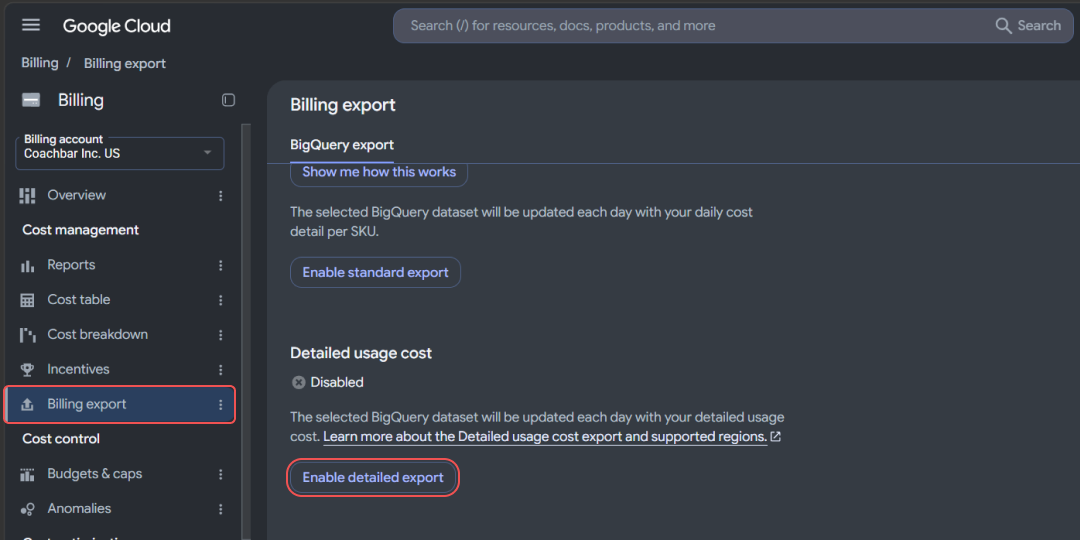
Billing → Billing export: Enable detailed export
- In the setup window, choose the project from step 1 and the dataset from step 2, then Save.
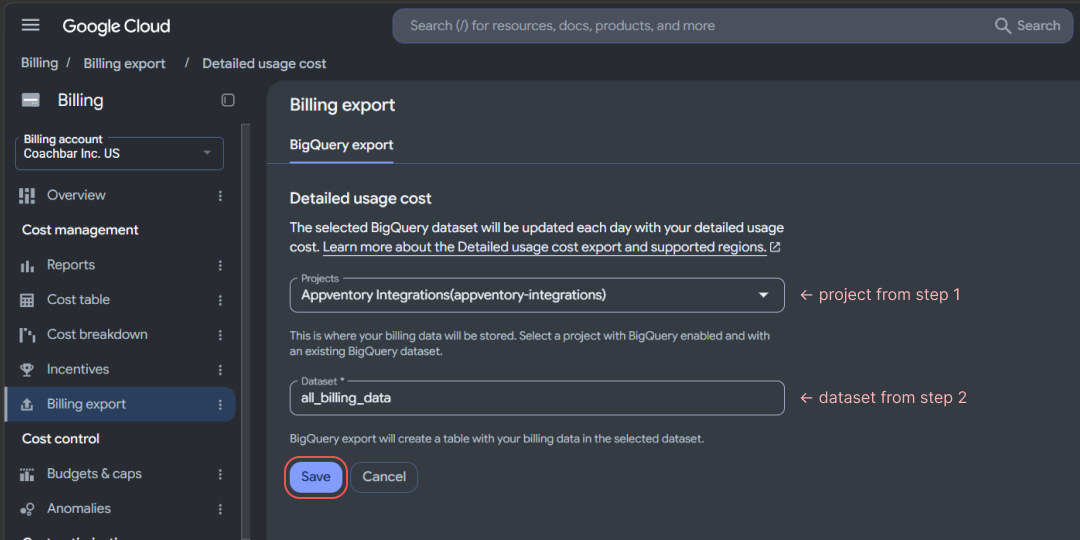
Choose the project from step 1 and the dataset from step 2, then Save
Step 4: Copy the table ID into AppVentory
- Wait for Google to create the billing table under your dataset. This can take 24–48 hours.
- In BigQuery, open the ⋮ menu next to the table and select Copy ID.
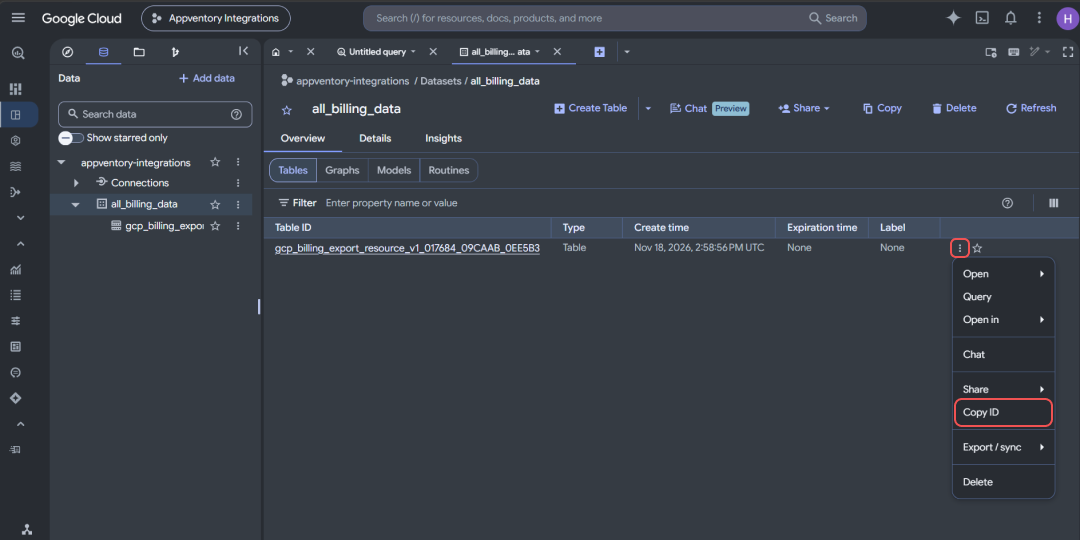
BigQuery: open the ⋮ menu next to the billing table and select Copy ID
- Paste it into Billing table ID in AppVentory's Google Cloud (Gemini) connect window, and follow the steps there.
Example table ID
The ID has three parts: project, dataset and table.
billing_exports.all_billing_data.gcp_billing_export_resource_v1_01A2B3_C4D5E6_F7G8H9