
What you get
The client's users and which apps each person can sign in to. This is what lets AppVentory find licences held by people who have left.
Before you start
- Identity providers are connected per client, inside the client's workspace. Your practice-level Integrations page connects your own organisation's identity provider, not your clients'.
- Whoever completes the sign-in needs admin rights on the client's identity provider. Usually that is the client's IT admin, not you.
- The client workspace is a Live Mode screen.
Steps
- Use Select Client at the top of the screen and pick the client.
- Go to Integrations → Identity Providers.
- Click Connect on Google Workspace, Microsoft Entra ID or Okta and complete the sign-in, or have the client's admin do it with you.
- Click the client's name chip ✕ to return to your practice.
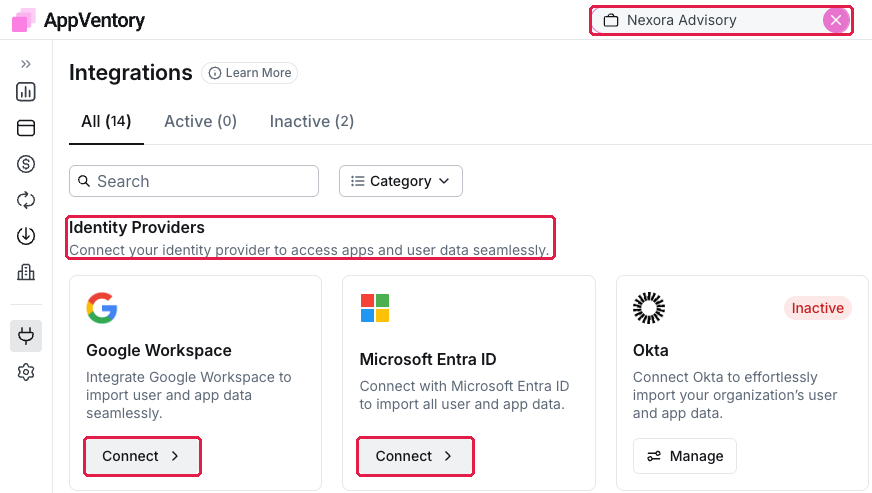
A client's workspace Integrations page with Identity Providers
What comes into AppVentory
Users, their status and the apps they can access. Passwords are never shared with AppVentory.
What you've unlocked
Off-boarding Leakage and user counts for this client. Add the browser extension for usage — see Roll out the browser extension to your team, which applies to the client's team in the same way.
Managing your own organisation's software? See Connect your identity provider.