.png?width=187&height=40&name=AppVentory%20Logo%20(White).png)
The App Listing view has been redesigned for improved usability. All applications are now categorized under four new stages: In Use, Discovered, and Inactive to provide a clear, streamlined view of the software landscape.
UI / UX Navigation Update
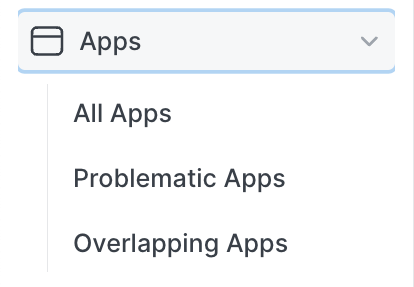
The Apps module now includes dedicated subsections within the left sidebar for:
-
All Apps
-
Problematic Apps
-
Overlapping Apps
These sidebar entries mirror the primary tabs displayed within the Apps page. Each section represents the same underlying view and functionality.
This update improves direct navigation across application views without modifying workflows, intelligence models, or data behavior.
Purpose
Use the Apps page to:
- Discover applications connected through identity providers
- Monitor application usage and associated costs
- Identify underused or inactive apps
- Assign app ownership and department accountability
- Navigate all apps across categories from a unified All Apps tab
- Edit department assignments across multiple apps using bulk update directly within the table.
Page Overview
Google Workspace
To enable automatic syncing of user and app data from managed Google accounts for unified visibility and streamlined app management.
Google Workspace integration connects organizational Google accounts to AppVentory, allowing seamless import of user and application data. Once active, it ensures continuous synchronization, centralizes visibility of app usage, and supports tracking through dedicated tabs like Overview, Sync History and Activities.
Click here for more informationMicrosoft Entra ID
To enable automated synchronization of users and applications from Microsoft-managed accounts, ensuring centralized visibility and efficient app governance.
Microsoft Entra ID integration functions similarly to "Google Workspace", offering seamless import of user and app data into AppVentory. Once connected, it continuously syncs data from linked Microsoft accounts and provides detailed visibility through tabs like Overview, Sync History, and Activities, supporting efficient identity and access management.
Click here for more information
Okta
To enable syncing of assigned apps from Okta into AppVentory, allowing better visibility of identity managed applications across the organization.
The Okta Integration in AppVentory allows seamless synchronization of application assignments the identity provider. By connecting Okta to AppVentory, organizations can fetch and manage user-to-application assignments in one centralized location.
Click here for more instructions and supademo presentation on how to do Okta integration.
Import
To simplify bulk uploading of application data using structured templates for efficient onboarding and spend tracking.
The Import feature allows uploading application data through supported CSV or XLS templates. It helps accelerate data entry, standardize records, and kickstart spend analysis by creating entries that populate entries that populate the system once processing is complete.
Each method helps bring in data about applications in use, aiding visibility and cost management.
Viewing and Managing Applications
The Apps page provides a centralized workspace for analyzing, managing, and acting on applications used across the organization. The layout is divided into three columns, each containing multiple tabs and actions detailed application lifecycle management.
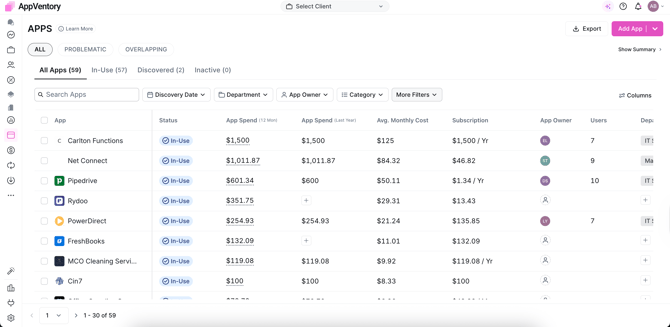
Column 1: Application Categories
This provides top-level filters that group applications by their type, risk, or relevance. These filters control the list displayed in Column 2.
- All Apps: Displays the complete inventory of applications across the organization. This view enables detailed filtering by status such as My Apps, In Use, Discovered, and Inactive.
- Problematic Apps: Displays applications flagged for compliance or financial concerns. Each record now shows supporting data such as Cost per User and the reason for flagging. Apps are organized under Needs Review and Resolved Apps tabs for continuous monitoring and follow-up.
- Needs Review: Displays applications flagged for review. Applications in this state require further evaluation to determine their ongoing suitability.
- Each application in Needs Review includes an option to "Mark as Resolved". When selected, the application automatically moves to the Result Apps tab.
- Each application in Needs Review includes an option to "Mark as Resolved". When selected, the application automatically moves to the Result Apps tab.
- Resolved Apps: Displays applications that have been reviewed and confirmed as problematic. Each application in this list can be reverted to Needs Review by using the Undo action. This ensures flexibility in managing review decisions.
- Needs Review: Displays applications flagged for review. Applications in this state require further evaluation to determine their ongoing suitability.
- Overlapping Apps: Identifies applications with similar functionality, helping reduce redundancy and optimize costs. The Overlapping Apps dashboard now includes visual KPIs such as Total Potential Savings, Realized Savings, and a Confidence Score to measure overlap accuracy.
Users can access a feature comparison table to analyze duplicate apps.
Two main actions are available: - Mark as Consolidated: Retain one app and record the realized savings amount.
- Dismiss: Exclude overlap suggestions with a specified reason (e.g., unique user base, under evaluation, or other).
Column 2: Application Status and Details
The Application Listing view has been revamped with a modern interface. Application are now grouped under stages, In Use, Discovered, and Inactive making it easier to track and act on app lifecycle states.
Each lists supports online editing for key fields such as App Owner and Department, allowing quick updates directly within the table.
A toggleable summary bar now displays key spend metircs including 12-Month Spend, Forecasted Value, and Spend per Employee for quick financial insight.
- My Apps: Displays applications assigned for active management.
- In Use: Lists applications actively used across the organization.
- Discovered: Displays applications detected but not yet formally managed, supporting shadow IT analysis.
- Inactive: Displays applications that are no longer in use, supporting cleanup of retired or deprecated tools.
Application Details
The App Details page features a redesigned, modern layout. Key information such as ownership, usage, and spend metrics now appear in a static right-hand panel for better visibility and navigation.
Selecting View Details on any application opens the Application Details panel. This panel contains six tabs that provide comprehensive visibility into financial, contractual, integration, and usage aspects of the application.
1. Overview
The Overview tab now includes a visual spend summary bar and interactive hover charts showing historical and forecasted spend data. It provides a consolidated view of financial performance, user adoption, and ownership details.
- App Spend: Total expenditure on the application.
- 12-Month Spend: Rolling 12-month spend history.
- Fiscal Spend: Application spend aligned to the current fiscal year.
- YTD Spend: Year-to-Date expenditure on the application.
- App Users: Displays all users linked to the application, categorized as Active or Inactive. Each record includes Name, Job Title, Email Address, and Department for detailed visibility into usage patterns.
The Overview tab is designed to provide financial visibility, user-level adoption, and subscription data in a single consolidated view.
2. Users
The Users tab provides visibiity into the individuals who are currently associated with the application and their usage behavior. This tab helps administrators understand who is using the application and how actively it is being accessed, enabling better governance and usage analysis. The Users tab contains two sections:
App Users: This section lists all users currently associated with the application. This view provides key user attributes that help administrators identify and analyze the application's user base.
Login Activity: This provides insights into how frequently the application is being accessed by its users. This helps administrators evaluate user engagement and adoption trends.
3. Spend
The Spend tab provides a consolidates view of the application's financial data. It allows administrators to monitoe the cost associated with the application over different time periods, helping organizations manage software spedning and identify potential optimization opportunities.
Within this tab, users can select a time range filter from a dropdown menu to analyze spending trends across different periods.
4. Contracts
The Contracts tab centralizes contractual records linked to the application.
- Existing contracts are displayed for review.
- Selecting Add New Contract opens a form for creating and attaching a new contract record. Required details must be completed before submission.
- Once added, the contract is displayed in the application’s record for ongoing tracking.
This section ensures visibility into contractual obligations, renewal dates, and vendor agreements.
5. App Integrations
The App Integrations tab manages the integration of the application with other systems.
- Selecting Add App opens a panel to configure a new integration.
- Available Sync Types include:
- Two-Way Sync: Data flows both to and from the integrated systems.
- One-Way Sync (From): Data flows from the selected application into the connected system.
- One-Way Sync (To): Data flows from the connected system into the selected application.
This tab enables clear visibility into integration architecture and data synchronization methods.
6. Alternative Apps
The Alternative Apps tab lists recommended applications that can serve as replacements or competitors.
- Typically, three to four alternative applications are displayed.
- Each suggested application includes a Compare button for side-by-side evaluation.
- Comparisons include features, pricing, adoption levels, and other relevant metrics.
This section assists in portfolio optimization by enabling evaluation of more cost-effective or functionally superior applications.
7. Activities
The Activities tab displays a chronological log of actions and updates related to the application.
- Activities may include spend updates, contract modifications, user assignments, survey responses, or administrative actions.
- The timeline view supports auditing and provides historical context for decision-making.
.
The App Details page has been redesigned with a clean, modern layout. Key application information, including ownership and spend metrics, now appears in a dedicated static right-hand panel for easier access.
Actions
The Actions option is available as a dropdown menu within the App Details section. This functionality is accessible across all tabs within the App Details view and provides administrators with quick controls to manage the application's lifecycle and status.
The Actions dropdown includes the following options:
- Move to Discovered
- Deactivate
- Delete
Each option perform a specific administrative action on the application
1. Move to Discovered
Selecting Move to Discovered changes the application status form In Use to Discovered
When an application is moved to the Discovered state, the number of available tabs within the App Details page is reduced from seven to four. The remaining tabs are:
- Overview
- Users
- App Integrations
- Activities
This behavior is intentional and reflects the purpose of the Discovered state. Applications marked as Discovered are considered applications that have been identified within the environment but are not actively managed or confirmed as being in use. As a result, only essential visibility and monitoring information is retained.
Administrative and operational tabs such as Spend, Contracts, and Alternative Apps are hidden because these elements typically apply to applications that are actively managed or confirmed as in use.
If the application is later confirmed to be actively used, it can be moved back to the In Use state. Once the status is reverted, all seven tabs become available again, restoring full application management capabilities.
2. Deactivate
Selecting Deactivate marks the applications as Inactive
When this option is selected, administrators have the option to eneter a comment, however, providing a comment is optional. Once the Deactivate button is confirmed, the application status changes to inactive.
When an application is deactivated:
- The application remains listed within the platform.
- However, the View Details option will no longer appear when hovering over the application card.
This behavior prevents further interaction with the application's detailed configuration while it remains inactive.
If needed, the application can be reactivated at any time. To do this:
- Navigate to the Inactive tab within the application list
- Locate the deactivated application
- Select Reactivate
Once reactivated, the application returns to an active state, and the View Details option becomes available again.
3. Delete
The Delete option permanently removes the application from the active application list.
It is important to note that this action cannot be undone. Once an application is deleted, it will no longer appear within the main application listing.
However, deleted applications are still retained in the system for reference purposes. They can be accessed through the Archive tab located on the Spend Overview page.
This ensures that historical application records remain available for audit, reporting, or historical spend analysis, even after the application has been removed from active management.
Column 3: Application Management and Allocation
Column 3 is activated when one or more applications are selected in Column 2. This column provides ownership, classification, and allocation controls.
- App Owner: Assigns responsibility for the application to a designated individual or team.
- App Category: Classifies the application into categories such as:
- Task Management
- Shipping Software
- CEO Software
- Marketplace
- Subscription: Configures subscription details, including:
- Subscription Amount
- Subscription Frequency (Monthly, Quarterly, Semiannual, or Yearly)
- Auto-update toggle (enables or disables updates managed by App Entry)
- Department: Allocates application costs across departments. Options include:
- Budget Distribution Type: Equal, Headcount-Based, or Custom
- Department Allocation: Assigns costs to departments such as Marketing, IT, or HR
- More Options:Provides additional actions:
- Create Survey: Generates a survey to gather user feedback on the application.
- Move to Discovered: Reclassifies the application as discovered.
- Move to Inactive: Marks the application as inactive.
Delete: Removes the application from the portfolio.
Bulk actions now support updates for Department, Subscription, and Ownership fields directly from the application list view, enabling faster portfolio management.
If you need further assistance, please contact our dedicated customer support team at support@appventory.com, who will assist you with anything else you need. We take pride in providing exceptional service experiences, and our commitment to client satisfaction is at the heart of everything we do.