.png?width=187&height=40&name=AppVentory%20Logo%20(White).png)
Key Features
- Spend Tracking: View a detailed log of application expenditures, including the date of spend and the total amount.
- Allocation Management: Monitor billable spend, applied margin, and unallocated funds to support improved allocation control and transparency.
- Data Archiving: Organize the workspace by moving completed or historical entries to the Archived tab.
- Custom Rules: Set default margins and create specific "App on Charge" rules to automate financial workflows using refined allocations logic and updated rule scopes
Navigating the App on Charge Dashboard
The dashboard is divided into two primary views:
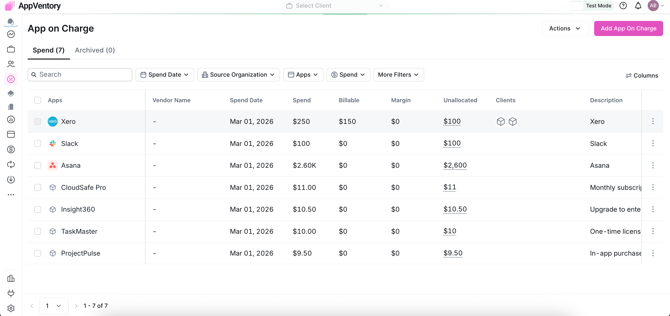
- Spend Tab: Displays active records of software costs. Each row provides details such as:
- Apps: The software being charged (e.g., Slack, Zoom).
- Spend Date: When the cost was incurred.
- Spend & Billable: The raw cost versus the amount to be billed.
- Unallocated: Funds that have not yet been assigned to a specific client.
- Archived Tab: A repository for historical data that is no longer active in the current billing cycle.
How to Add a New App on Charge
To manually record a new application expense:
- Click the Add App On Charge button in the top right corner.
- In the side panel that appears, fill in the following required fields:
- Select App: Choose the application from the dropdown menu.
- Spend Date: Select the date the charge occurred.
- Amount: Enter the total dollar amount.
- Description: Provide context for the charge (e.g., "Slack Yearly Subscription").
- Click Add App to save the entry.
Spend Overview Enhancement (App on Charge)
The Spend Overview page has been introduced and enhanced to support a more streamlined advisory and rule-driven workflow for managing application spend.
It serves as a centralized workspace where users can review app-level expenditure and directly initiate allocation logic, without navigating to separate rule configuration areas.
Rule Creation from Spend Overview
Users can initiate rule creation from the Actions menu within Spend Overview:
- Select an app from the Spend Overview list
- Choose Create App on Charge Rule
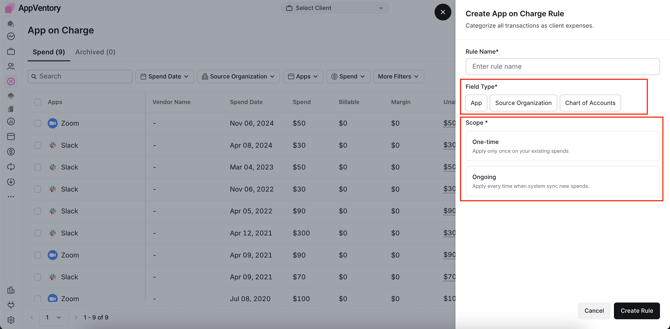
- Apply rule scope as required (On-time or Ongoing)
- Configure allocation logic and confirm
This removes the need to switch between Spend Overview and the main rule configuration area, improving workflow efficiency.
One-time Rule
- Applies only to existing soend
- Can be triggered from a defined start date
- Does not apply to future transactions
- When executed from Spend Overview, the spend is moved to the App on Charge Spend List.
Advanced Actions
Using the Actions dropdown menu, A user can further customize your financial settings:
|
Action |
Description |
|
Set Default Margin |
Define a standard margin applied across all application charges. |
|
Create App On Charge Rule |
Create automated allocation rules based on App, Source, and Chart of Accounts |
Allocation Rule Logic Updates
Allocation rule logic has been refined to improve clarity, control, and predictability of cost allocation.
| Note: Use the Search bar or Filters (Spend Date, Source Organization, Apps, etc.) to quickly locate specific transactions within a large dataset. |
Scope Terminology Update
Legacy scope definitions have been replaced with clearer rule types:
One-time Rule
- Applies to existing spend only
- Can be triggered from a defined start date
- Does not apply to future transactions
Ongoing Rule
- Applies to both historical and future spend
- Automatically processes all incoming transactions
- Continuously applies to new spend
Rule Configuration Fields
Rule configuration now includes the following fields:
- App
- Source
- Chart of Accounts
If you need further assistance, please contact our dedicated customer support team at support@appventory.com, who will assist you with anything else you need. We take pride in providing exceptional service experiences, and our commitment to client satisfaction is at the heart of everything we do.