.png?width=187&height=40&name=AppVentory%20Logo%20(White).png)
Add Profile
The Add Profile section manages the entry of new entities into the system. This section is divided into two main categories: Clients and Prospects, accessible via the toggle in the top-right corner.
Purpose
To define the scope of management by adding organizations and establishing their initial data connections.
Clients Onboarding Methods
- Add Manually: Select this to input specific details for an individual entity. Upon selection, a choice between a Silent Client (managed internally without notification) or an Engaged Client (receives an invitation to join the platform) must be made.
- Bulk Import: Used to add multiple clients at once. A template file is provided for download to ensure data matches the required format before uploading the finalized list.
- Integrations: Directs to a library of third-party connections. Establishing these links (e.g., Google Workspace, Okta, Xero, Sage) allows for automated data syncing of user activity and financial spend.
- Invite Clients: Allows for sending email invitations to up to 25 contacts at once. This section also tracks the status and history of sent invitations.
Prospects Onboarding Methods
- Add Manually: The Add Manually method for prospects allows for the direct entry of potential new business data into the platform. This two-step process ensures both individual contact details and organizational context are captured to facilitate future account setup.
Once both steps are finalized, selecting Add Prospect saves the profile to the Prospects list on the Advisory Overview page, where the status of the lead can be monitored. - Enrolment Link: (Visible in Prospect view) Generates a unique URL to share via email or LinkedIn. Submissions through this link can be set to either create a "Request" for manual review or automatically add the entity to the "Prospects" lists.
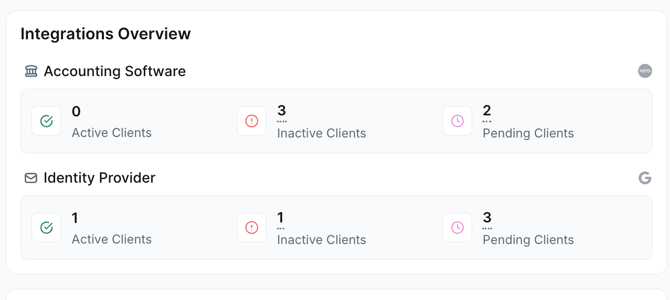
Integrations Overview
This section provides a status summary of all external data connections across the managed portfolio.
Purpose
To monitor the health of data feeds and identify clients that require reconnection or initial authorization.
Categories
- Accounting Software: Monitors links to financial platforms like Xero and QuickBooks.
- Identify Provider: Monitors links to access management platforms like Google Workspace and Microsoft Entra ID.
Status Tally: Both sections display a court of Active, Inactive, and Pending connections to ensure reporting accuracy.
Savings Analytics
These modules quantify the financial value generated through the platform's management tools.
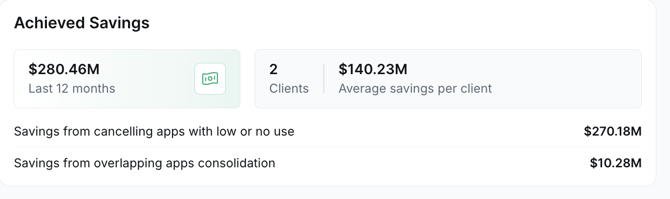
Achieved Savings
- Purposes: To track realized financial gains over the previous 12-month period.
- Metrics: Shows total savings across all clients and the average savings per client. It specifically breaks down gains from cancelling low-use apps and consolidating overlapping subscriptions.
Total Achieved Savings
Total Savings = Savings Cancellations + Savings Consolidation
Calculation:
$270.18M + $10.28M = $280.46M
Average Savings per Client
Average Savings = Total Savings ÷ Number of Clients
Calculation:
$280.46M ÷ 2 = $140.23M
Potential Savings
-
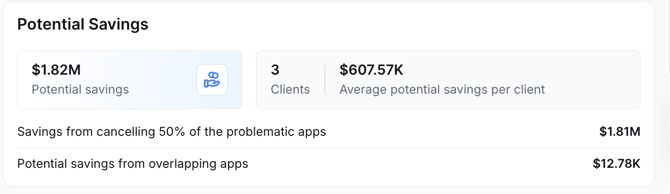
Purpose: To forecast additional cost-reduction opportunities
- Metrics: Identifies theoretical savings if 50% of problematic apps are cancelled and further overlapping software is removed.
Total Potential Savings
Total Potential Savings = Savings Problematic + Savings Overlap
Calculation:
$1.81M + $12.78K = $1.82278M
Average Potential Savings per Client
Calculation:
$1,822,780 ÷ 3 = $607.57K
Report History
This section manages the lifecycle of professional assessments and reviews.
Purpose
To generate and store structured reports that communicate findings and recommendations to clients.
Usage
Click the Generate Report dropdown to choose a report type:
- Financial Review: Provides an analysis of software spend, forecasts, and cost optimization. This requires a sync of app spend data as a prerequisite.
- System Review: Analyze the technical landscape and integration health.
- Viewing History: The Report History list displays recently generated reports, the associated client, the creation timestamp, and the author's initials.
App on Charge & Recovery
These modules manage the actual financial transactions and cost recovery processes.
App on Charge Summary
- Purpose: Provides a snapshot of total active spending.
- Details: Displays the Total Amount Spend and the Number of Apps Paid For. Clicking View All navigates to a detailed ledger showing vendor names, spend dates, and billable margins.
For more information, click here
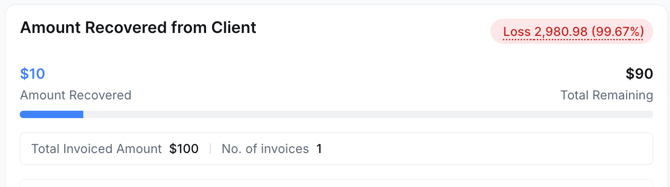
Amount Recovered from Client
- Purpose: To track the reimbursement of software costs from clients.
- Functionality:
- Progress Bar: Visualizes the "Amount Recovered" against the "Total Remaining."
- Invoiced Details: Displays the total invoiced amount and the count of individual invoices.
- Record Payment: Opens a modal to select a client and log a specific payment, which updates the recovery progress and loss percentages displayed in the dashboard.
Remaining Balance
Remaining = Total Invoiced − Amount Recovered
Calculation:
$100 - $10 = $90
Recovery Percentage
Calculation:
($10 ÷ $100) × 100 = 10%
Aggregate Loss CalculationThe loss badge represents total unrecovered funds across all clients. Deriving Total Invoiced (Practice-wide) Calculation: |
Vendors with High Compliance Risk
Purpose
To identify and mitigate risks associated with third-party software that may not meet security or regulatory standards.
Usage
This section lists apps (e.g., Evernote, QuillBot, Pinterest) and the number of clients affected by each. Users can click Send Email to notify affected clients directly of the risk or click View All for a filtered list of all high-risk vendors across the portfolio.
If you need further assistance, please contact our dedicated customer support team at support@appventory.com, who will assist you with anything else you need. We take pride in providing exceptional service experiences, and our commitment to client satisfaction is at the heart of everything we do.